Compose a Scene
Compose a Scene: your references, in one picture.
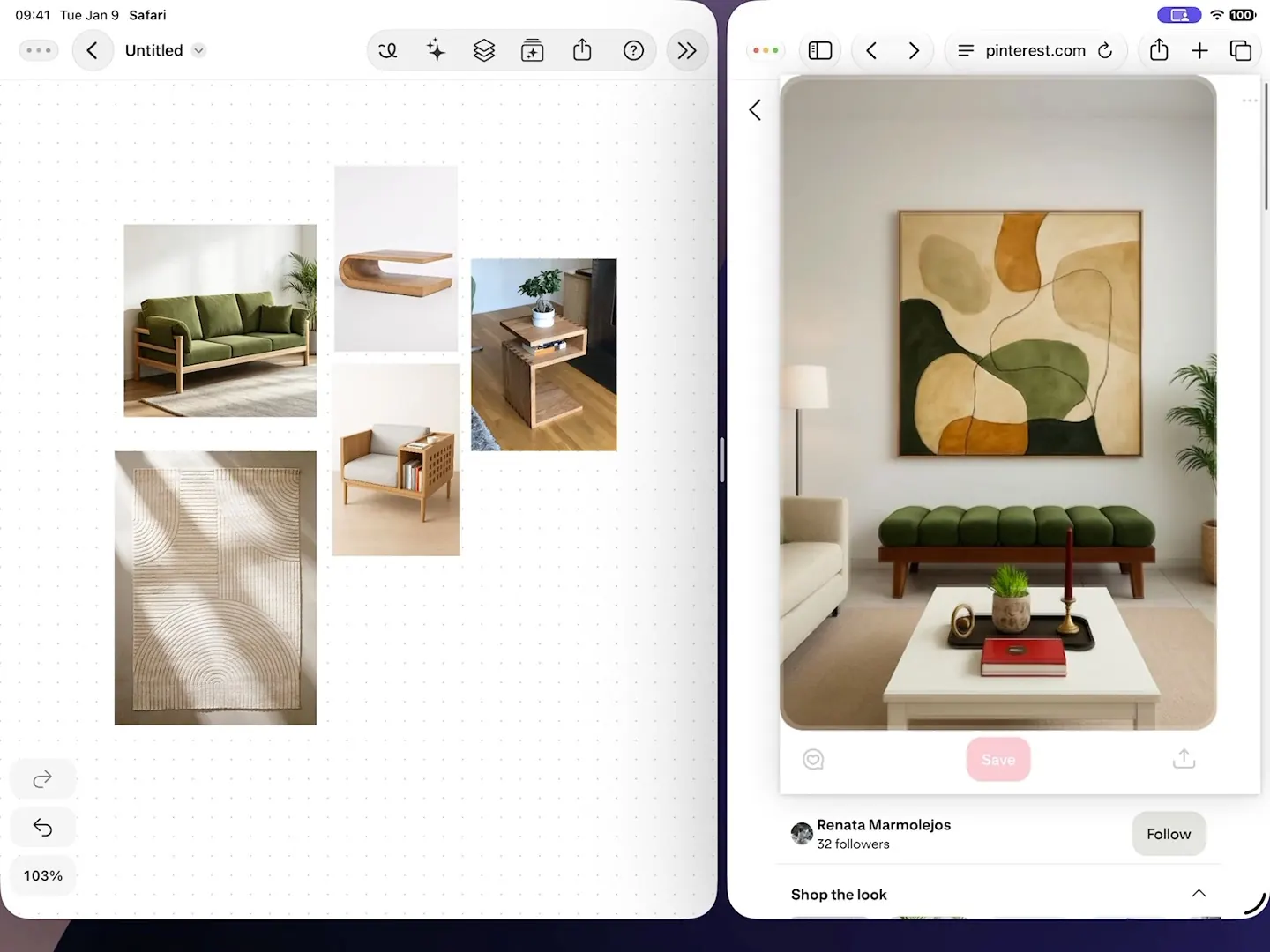
Select two to six items on a Space, even references dragged in from the web, and compose them into one image. The sources stay as they were, so you can try again with a different set.
What it does
What Compose a Scene does.
- Combines two to six selected items into one new image
- Works with photos, renders, sketches and references dragged in from other apps
- Leaves the source items untouched on the board
- Adds the result to your Space, next to what it was made from
How to use it
Step by step.
From the app’s own help, with steps for Apple Pencil and a keyboard there too.
- Select two to six visual items, then choose Compose a Scene under Photo in AI Tools.
- Check the source previews; × removes an item from the request. Add an optional direction, then Send.
- Watch progress in chat. The completed scene appears beside its sources in Space, leaving them unchanged.
What you need
What it takes.
- AI credits
- AI credits
- A monthly allowance with Basic, Pro and Studio; one-time credits on Free to try it
- Where
- A Space
- In the AI Tools panel, with items selected
How many items can I combine?
Two to six items at a time.
Can I use images from the web?
Yes. Drag images in from other apps in Split View, select them, and compose.
Does it change my original images?
No. The sources stay as they were; the composed image is added to the board.
What else can the AI tools in Spaces do?
Variations, Apply Style, Save as Style, Split into Layers, Edit, Remove Background, Presentation Set and more. See AI image editing for designers.
Keep exploring
More uMake.
Try it in uMake.
uMake for iPad, iPhone and Mac