AI image editing
AI image editing for designers: edit, restyle and compose with AI
Updated October 5, 2026
The short answerAI image editing lets you change a picture by describing the change, or by sketching it, instead of retouching pixel by pixel. For designers, the useful tools go further: variations of a concept, a consistent style across a project, scenes composed from references, and photos split into layers you can rearrange. In uMake, they’re in the AI Tools panel of a Space, on iPad, iPhone, iPhone Duo and Mac.
Where the tools live
In uMake, AI image editing happens in a Space: an infinite board where your photos, renders, sketches and live 3D designs sit side by side. Open AI Tools with the sparkles button, select an image, and pick a tool. Results come back in the chat, and you add the ones you like to the board, next to the original (Help: Space AI tools).
The AI Tools panel
| Group | Tool | What it does |
|---|---|---|
| Photo | Edit | Change it with words or a sketch |
| Photo | Remove Background | Just the subject, no background |
| Photo | Variations | Several directions, same subject |
| Photo | Presentation Set | Complementary views in one group |
| Photo | Exploded View | Show how its parts fit together |
| Photo | Compose a Scene | Your selected items in one image |
| Photo | Apply Style | Render an image in a style |
| Photo | Save as Style | Keep a look to reuse on other images |
| Photo | Split into Layers | Turn a photo’s objects into layers |
| Create | Generate Image | A new image from words |
| Create | Generate Video | Short clips from an idea or an image |
| Create | Turn an image into a 3D model | A photo becomes a 3D model |
| Create | Scene Studio | Move objects and the camera |
| Textures & colors | Create custom textures | Seamless textures from words |
| Textures & colors | Generate color palettes | From a description or a photo |
Editing a single image
- Edit changes an image from a description or a sketch. Add a reference image and choose whether it guides the Material, the Style or the Subject; a written prompt is then optional (Help: Edit with an image reference).
- Remove Background leaves just the subject, ready to drop onto a board or into a composition.
- Variations explores several directions for one image while keeping the same subject: other colors, materials or moods. Choose Edit this on a result to keep refining it.
- Exploded View shows how a product’s parts fit together.
- Presentation Set turns one image into hero, detail and in-context views, added to the board as a grouped set.
Photos as layers
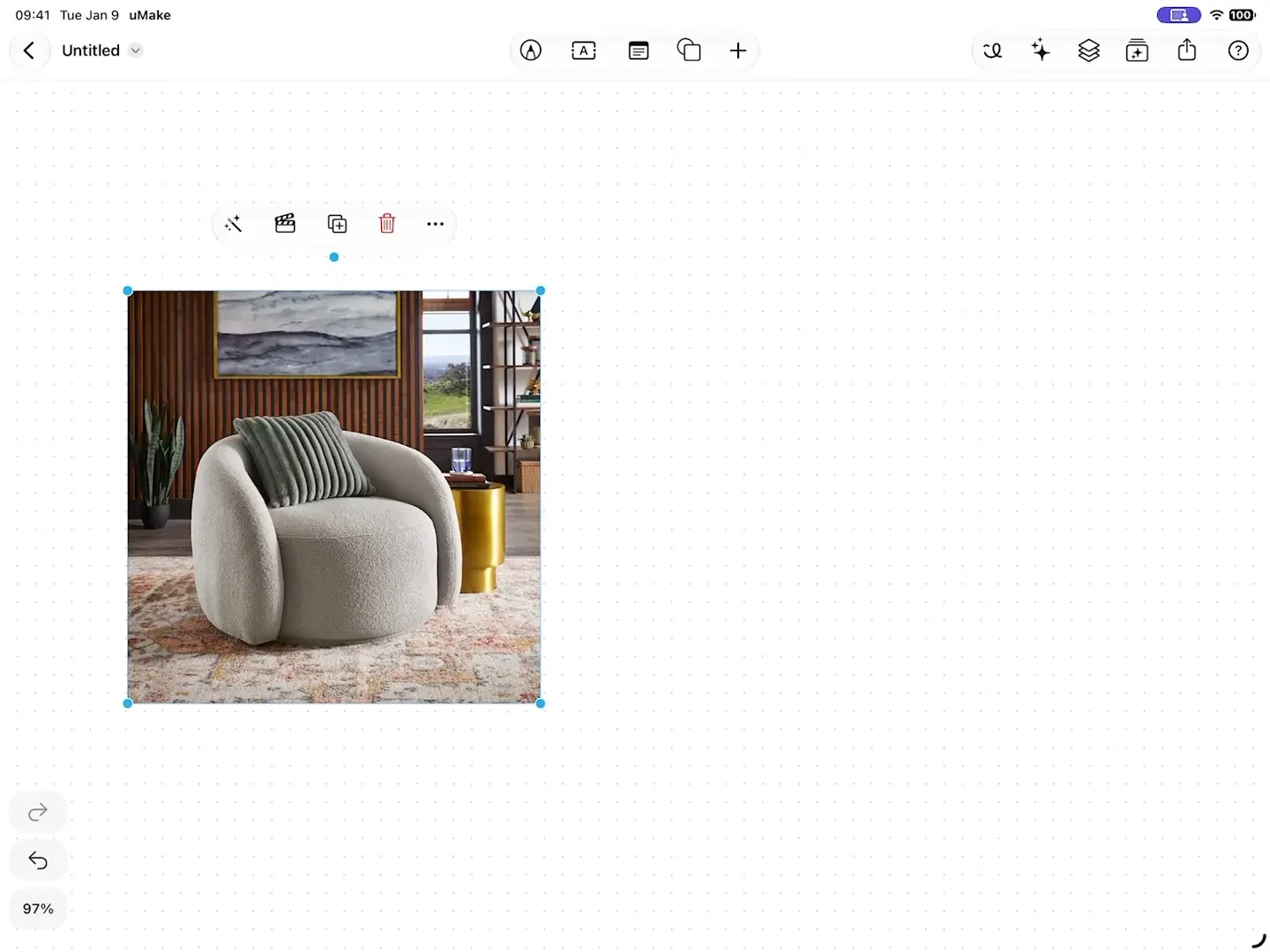
Split into Layers turns a photo’s objects into layers you can move, hide or rearrange. Objects finds each object, free within a daily limit; Subject cuts out the main subject on your device, free and offline; Draw Around It catches anything missed. The background can stay, hide, or be filled in without the objects (Fill uses credits). When an object is partly hidden, Make Whole redraws it in full, so the sofa behind the coffee table comes out complete (Help: Split into Layers).
Working across a project
- Compose a Scene takes two to six selected items and puts them in one image, beside the sources, which stay as they were.
- Save as Style keeps a look from up to six items. Apply Style restyles up to three items with a preset or one of My Styles, so a project keeps one visual language.
- Generate color palettes makes editable swatches from a description, or extracts them from a photo. Create custom textures makes seamless textures as a material set or variations of one material; they are images, not PBR maps.
- Generate Image and Generate Video start something new from words, or a video from an image.
Start from your own work. A render from Live AI Preview, or a view of your 3D design on the board, gives Variations and Apply Style a subject that is really yours, and the 3D design stays live beside the images.
On iPhone, iPad and iPhone Duo
The AI Tools panel works the same on iPad, iPhone and a Mac with Apple silicon. On iPhone Duo with iOS 27.1, the open phone gets the larger workspace uMake has on iPad, and an AI generation in progress carries on when you fold or unfold it. Most tools run in the cloud and need a connection; Split into Layers can find a photo’s subject on the device, offline.
What you need
The AI tools draw on AI credits: a monthly allowance with a paid plan, a one-time grant to try them on Free, and packs you can buy on the Education plan, which has no allowance of its own. A video uses more credits than an image, and the app shows what you have left (compare plans).
Can I edit images with AI on my iPhone?
Yes. The AI Tools panel in a Space works on iPhone, iPad, iPhone Duo and a Mac with Apple silicon: Edit, Remove Background, Variations, Apply Style, Split into Layers and the rest.
Can I change an image with a sketch instead of words?
Yes. Edit changes an image with words or a sketch, and you can add a reference image to guide the material, the style or the subject.
Is removing a background or splitting a photo free?
Split into Layers finds objects for free within a daily limit, and cuts out a photo’s main subject on the device, free and offline. Remove Background and the other AI tools use AI credits, as do Fill and Make Whole.
Do the AI tools change my original image?
Results come back in the chat for you to add to the Space, and Compose a Scene places its result beside its sources, which stay unchanged. Split into Layers does rework the photo on the board, but with Hide or Fill it keeps the untouched original on a hidden, locked layer, and Restore Original brings it back.
Try it in uMake.
uMake is free to download for iPad, iPhone and Mac.