Skip to contentuMake
Download uMake on the App Store

uMake

3D CAD Modeling, Design

4.3 out of 5 stars,More than 19,000 ratings worldwide

Scan to download on iPad or iPhonewww.umake.com
View on the App Store

Free · In-app purchases

uMake

Spaces

Spaces: models, sketches and references on one board.

A Space is an open board for a whole project: sketches, notes, photos, videos and live 3D designs, side by side. Arrange it, trace over it, and let AI work on whatever you select.

Free to download. Two Spaces are free; a plan makes them unlimited.
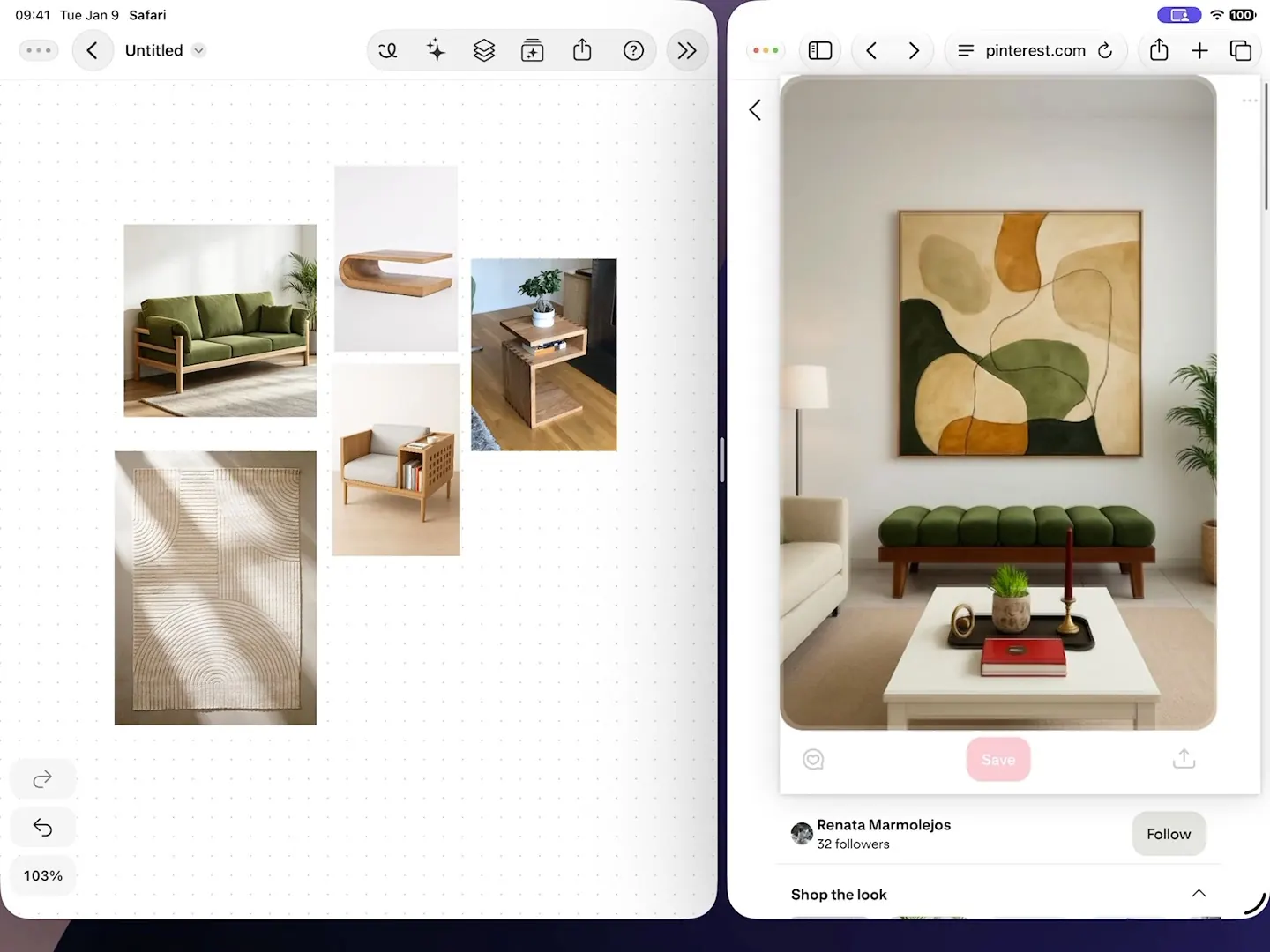
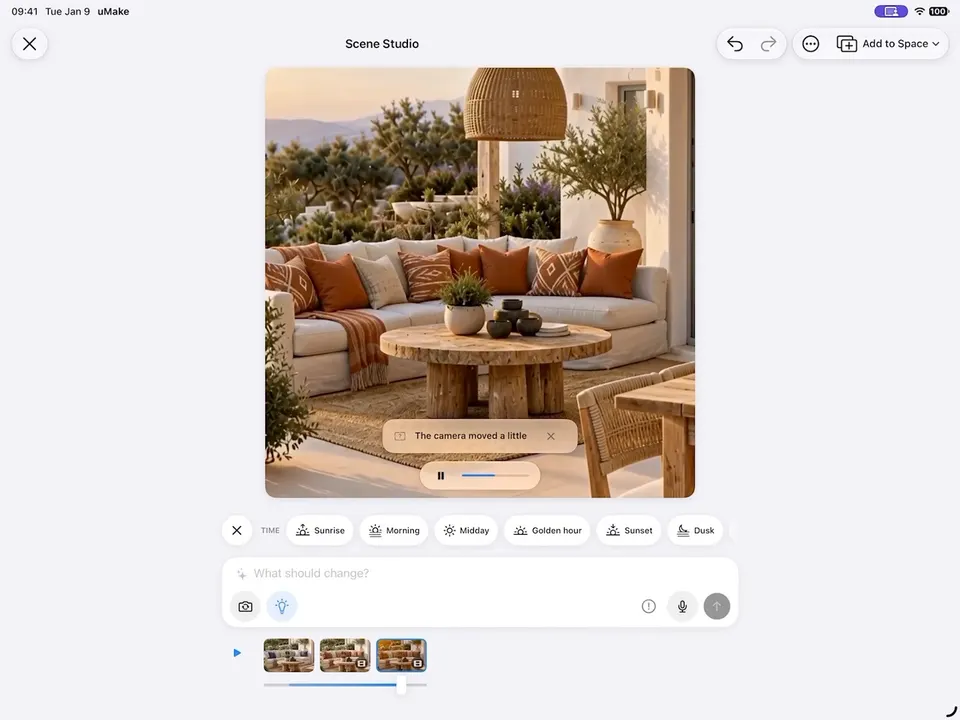
References dragged into a Space from a web browser in Split View, selected, and composed into one living-room scene
fig. 1 · Compose a Scene · 0:18

The board

Everything for the project, in one place.

Collect it, arrange it, then ask the AI Tools panel for more, right where the ideas are.

3D designs, notes & photos

Your 3D design, live on the board.

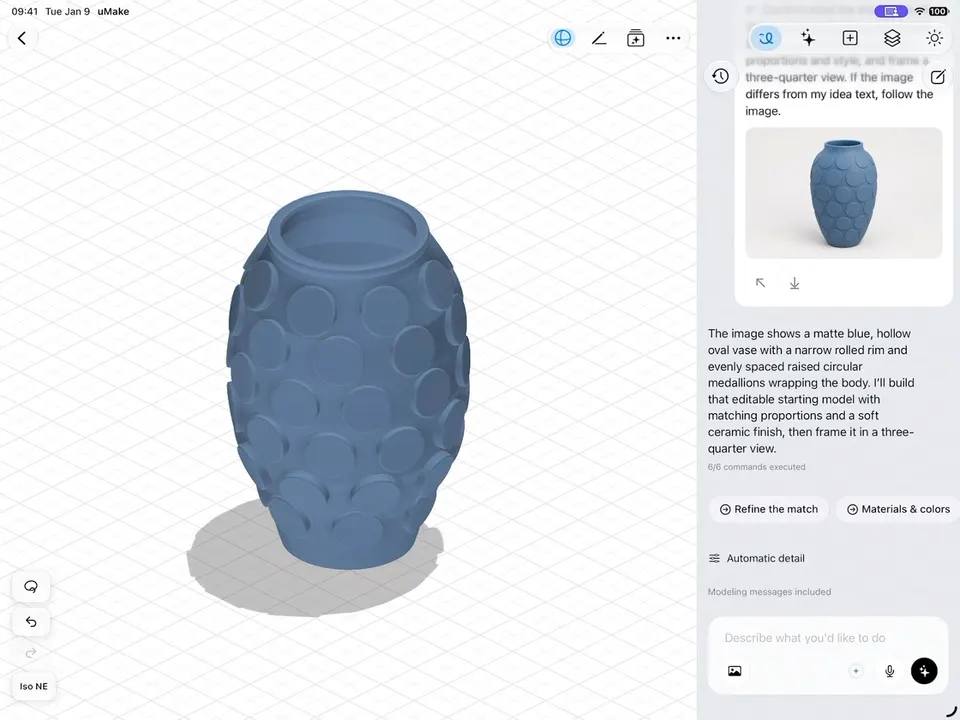
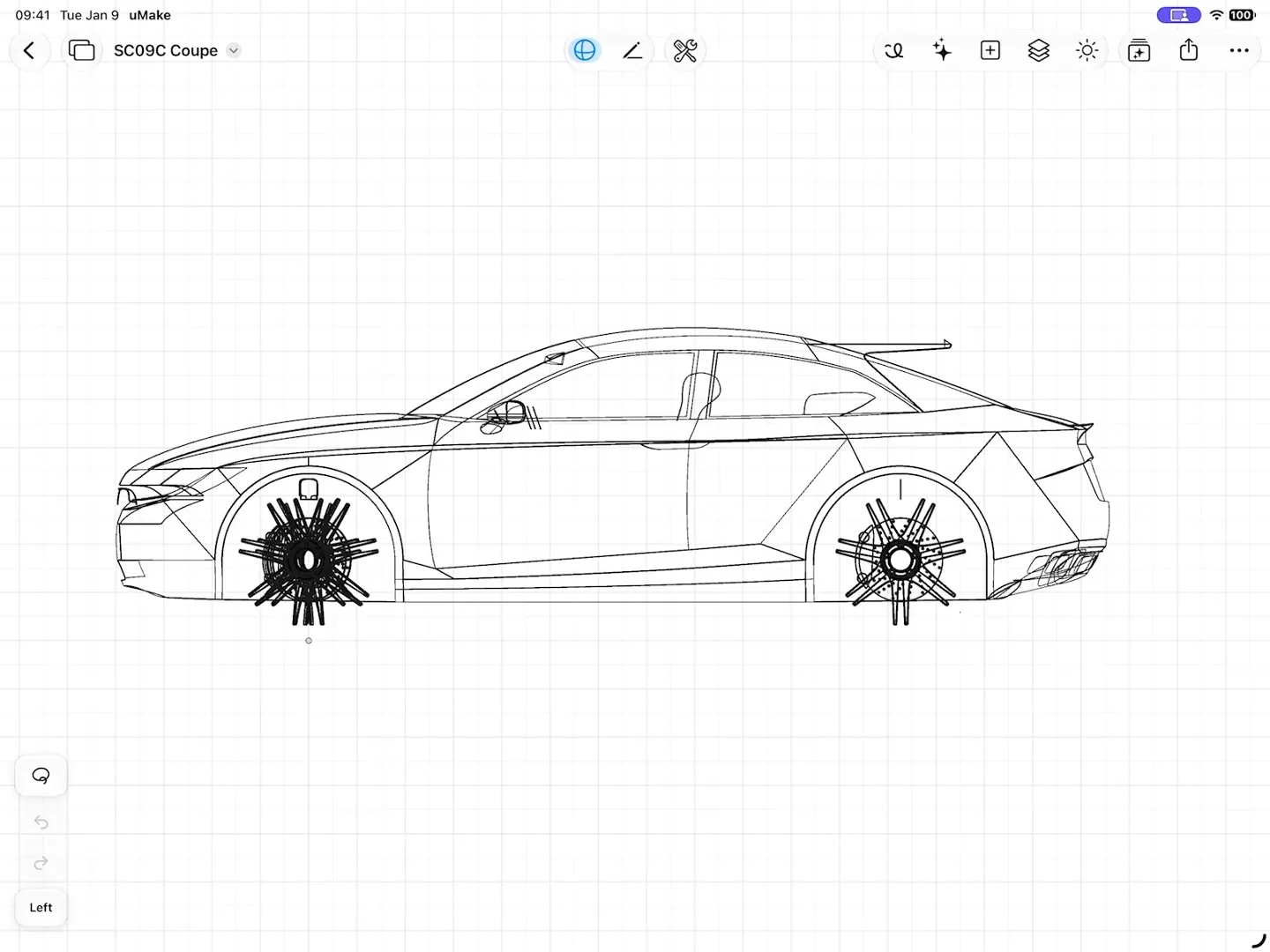
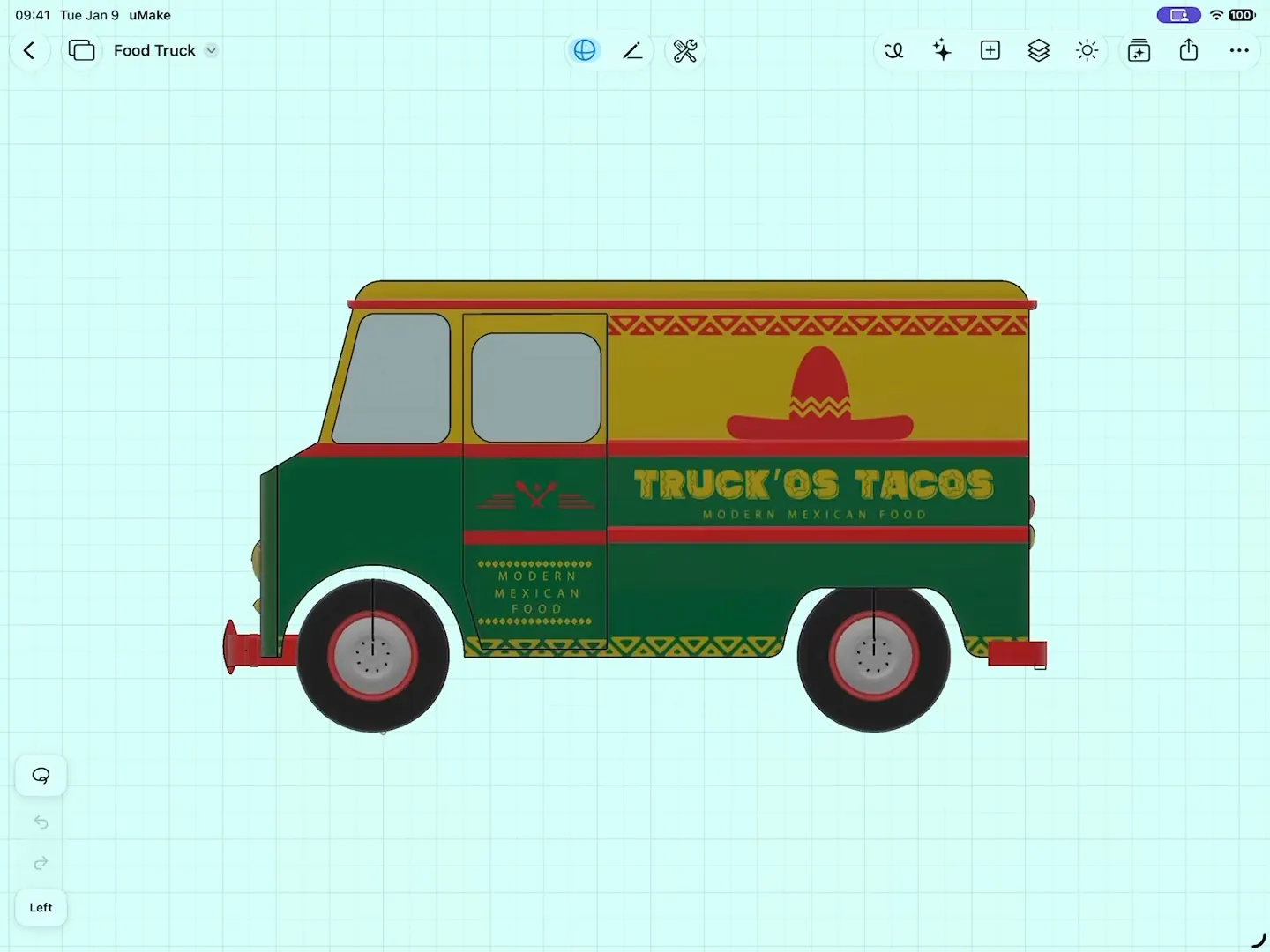
Place your uMake designs on the board as live cards and orbit them right there. Open one in the full 3D editor whenever it needs work, and your changes come back to the board. Pick an angle, and Variations explores new directions from it.
  • Sticky notes, text, photos, camera shots and videos
  • Doodle over everything with a finger or Apple Pencil: pens, markers, eraser and lasso
  • Drag references in from other apps in Split View, or insert USDZ and GLB models
A 3D food truck turned to a new angle on its Space card, then Variations returns six new liveries beside it
fig. 2 · Variations · 0:20

Flows

Your own AI workflow, on the board.

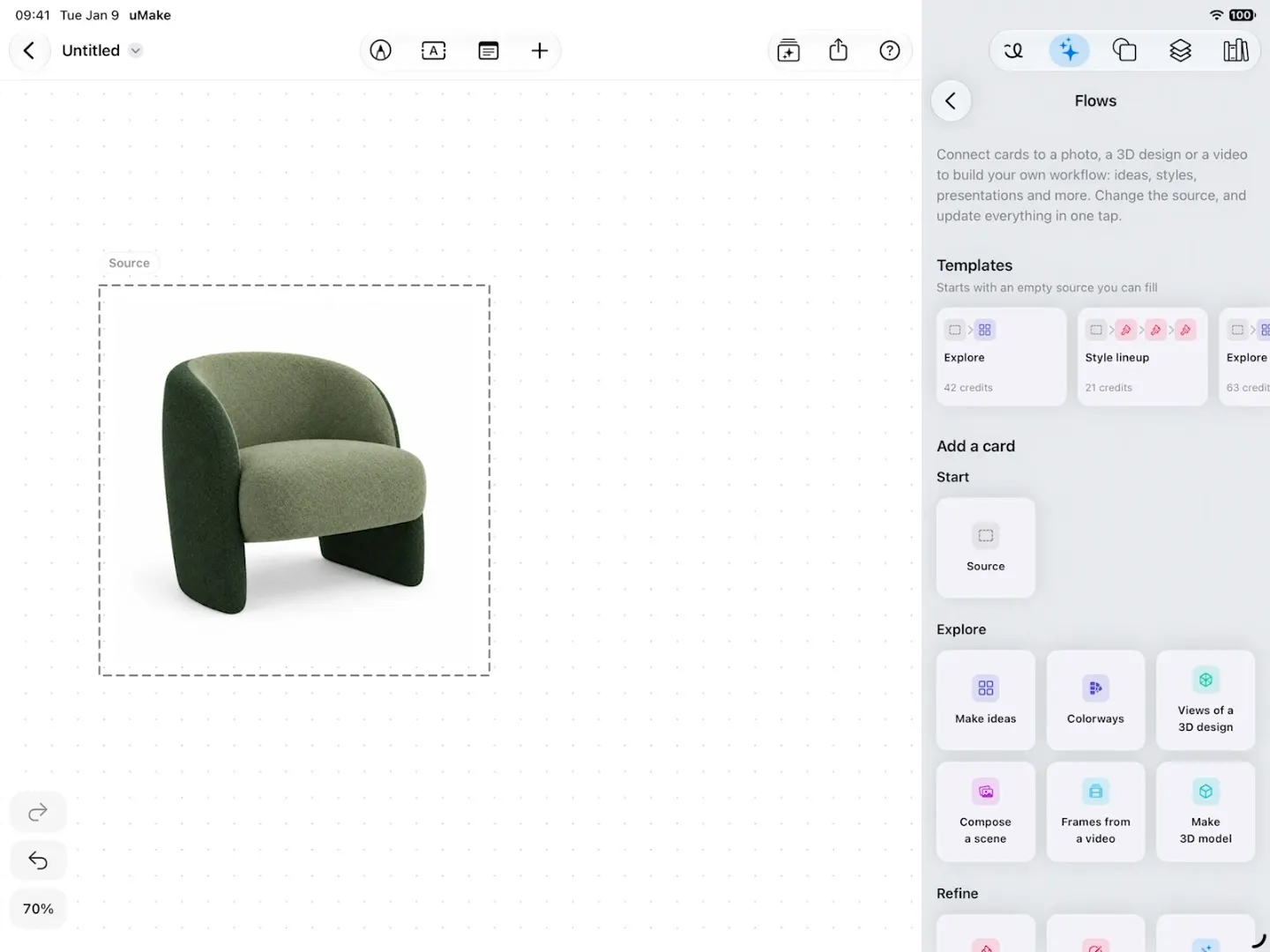
Connect AI cards to a photo, a 3D design or a video, and each card’s results land beside it, ready to feed the next card. When the source changes, one tap on Update redraws the ideas on the new picture.
  • Cards for ideas, colorways, styles, presentations and more
  • Start from a template, or add cards one at a time
  • Update by itself keeps a card in step with its source, once you turn it on
More about Flows
A Space in uMake: a green armchair as the Source, a Make ideas card wired to it and its colorways beside it, one composed into a living room, and a card with words making new ideas for the room
fig. 3 · Flows · 0:25

Layers & underlay

Layers, groups and an underlay.

Name your layers, hide, lock and fade them, and group them up to three levels deep. Use a photo or a plan as an underlay, faded and locked in place, to trace over.
  • Merge Down and Move to Layer keep the board tidy
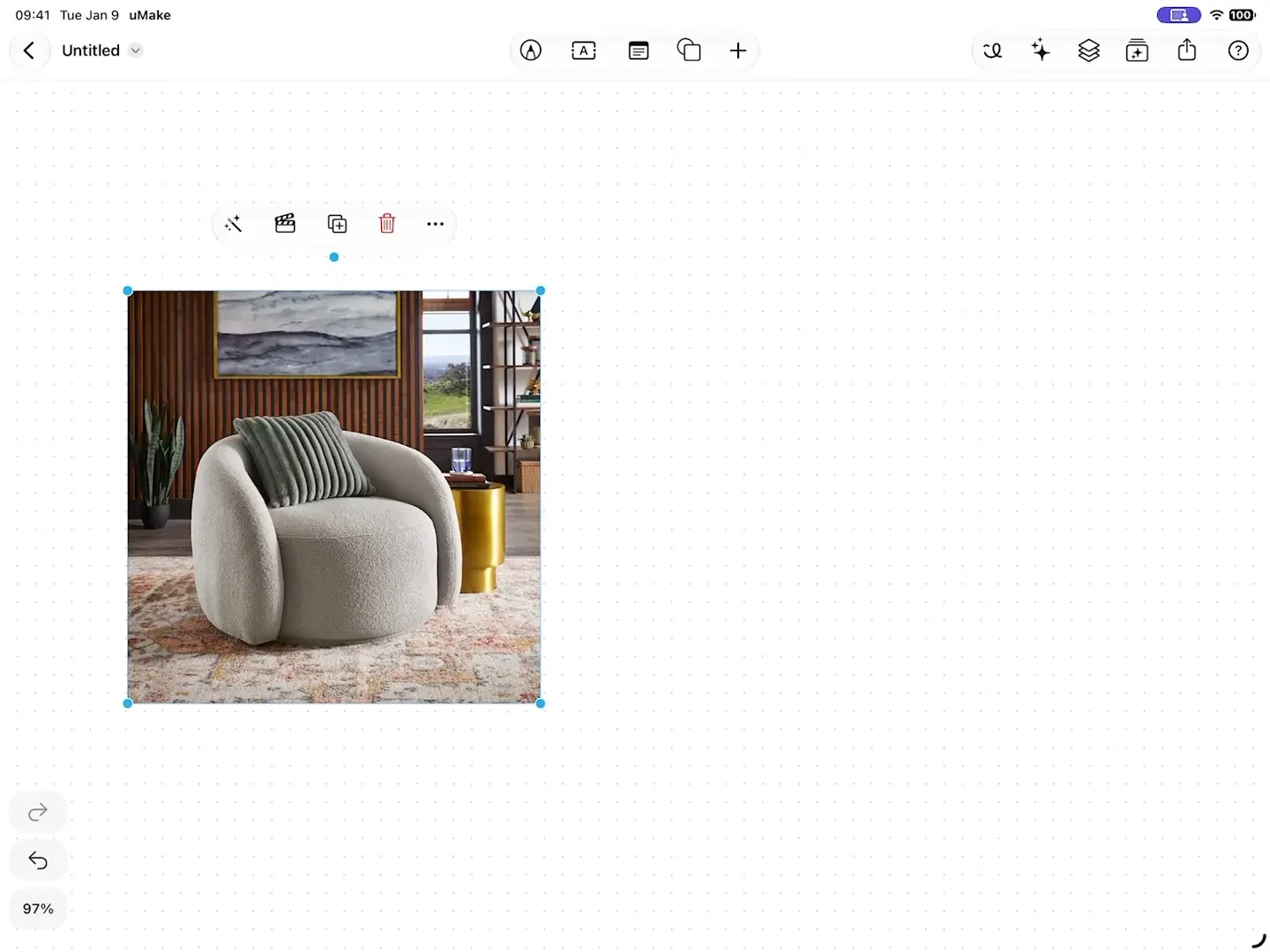
  • Split into Layers turns a photo’s objects into layers you can move on their own
  • Make Whole redraws a partly hidden object in full
More about Split into Layers
Split into Layers finds the objects in a photo of an armchair, makes the armchair whole, and moves it out as its own layer
fig. 4 · Split into Layers · 0:18

Apply Style & Save as Style

One look, every image.

Save a look from up to six items as a style, then apply it to other images, so a whole project speaks one visual language. Presentation Set adds hero, detail and in-context views of an image as a grouped board.
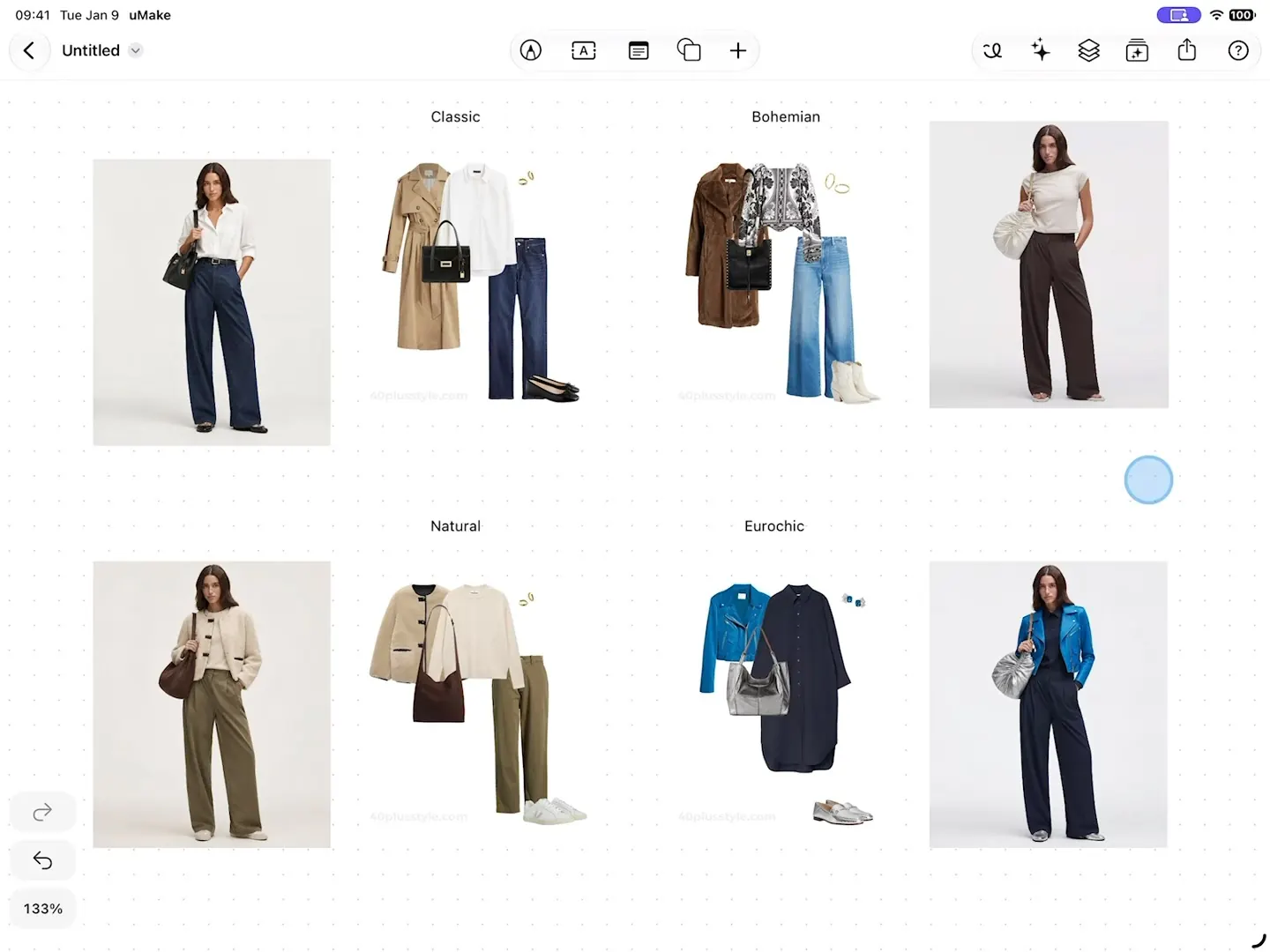
  • Apply a preset or one of My Styles to up to three items at once
  • Compose a Scene turns two to six selected items into one image
A saved style from My Styles applied to a photo of a model, changing her outfit to match the style
fig. 5 · Apply Style · 0:16

Compare & share

Options side by side, then share them.

Lay the options out next to each other and hide a layer to compare them. Then export the board as a PNG to send to anyone, or as a UMKS file to open in uMake.
  • A PNG for anyone, a UMKS file for anyone with uMake
  • Two Spaces are free; a plan makes them unlimited
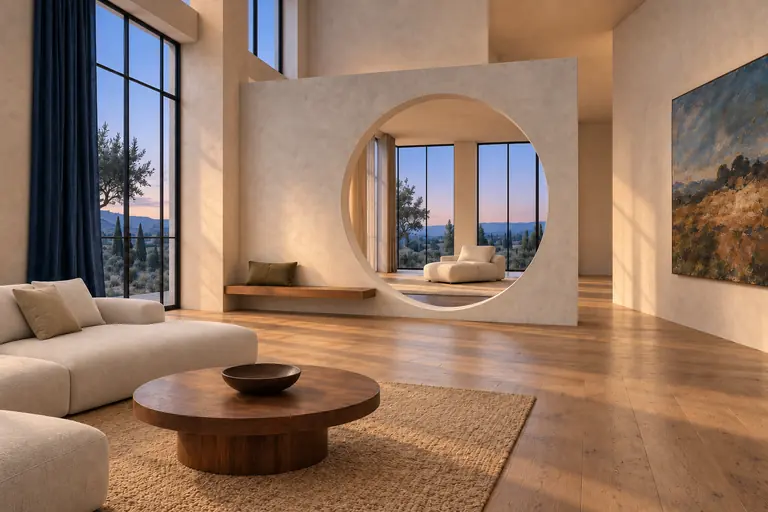
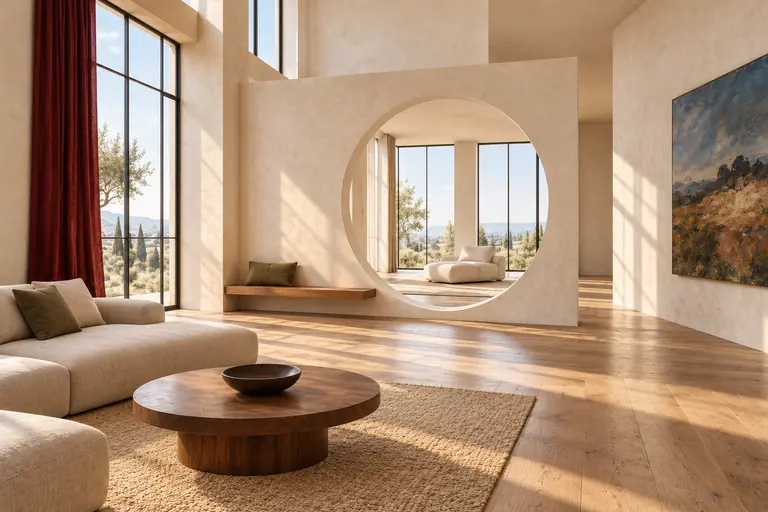
The living room with red curtains and a cream sofaOriginal
The same room with navy curtains under a dusk skyBlue hour
The same room with a sage plaster screen and linen curtainsSage linen
The same room with a rose-clay plaster screenRose clay
fig. 6 · Four takes on one room

What you need

What it takes.

The board itself is free. A plan adds unlimited Spaces and 3D editing; AI runs on credits.

Spaces
Two free
A plan makes them unlimited
Notes, photos, doodles, layers and the underlay
Free
3D designs on the board
Free to place
Editing them in the 3D editor needs a plan: Basic, Pro, Studio, Education or a uMake Teams seat
AI tools
AI credits
Monthly with Basic, Pro and Studio, one-time credits on Free. Split into Layers finds objects for free, within a daily limit.
Live Preview in Spaces
Basic, Pro or Studio
An AI render of the board that follows your strokes as you doodle

Questions

Questions about Spaces.

Still curious? Write to hello@umake.com

  1. What is a Space?

    A Space is an infinite board in uMake where you arrange sketches, notes, photos, videos and 3D designs together. 3D designs stay live: orbit them on the board, or open one in the 3D editor, and your changes come back to the board.

  2. How many Spaces can I make for free?

    Two. A plan (Basic, Pro, Studio, Education or a uMake Teams seat) makes them unlimited and unlocks editing your 3D designs in the 3D editor. Compare plans.

  3. Can I trace over a floor plan or a photo?

    Yes. Use as Underlay fades a photo or a plan and locks it in place, so you can trace over it without moving it. Hide its layer when you want to see your drawing on its own.

  4. Which files can I put in a Space?

    USDZ and GLB models, images and videos, and UMKS files from other Spaces. You can also drag images in from other apps in Split View. A Space exports as a PNG or a UMKS file.

One board for the whole project.

Start your first Space.

uMake for iPad, iPhone and Mac