Skip to contentuMake
Download uMake on the App Store

uMake

3D CAD Modeling, Design

4.3 out of 5 stars,More than 19,000 ratings worldwide

Scan to download on iPad or iPhonewww.umake.com
View on the App Store

Free · In-app purchases

uMake

AI Design Partner & AI tools

An AI partner that builds editable 3D.

Describe it in words or show it a reference image, and AI Design Partner builds real geometry on your canvas. You get a model you keep working on, not a picture.

Free to download, with one-time AI credits to try the AI tools.
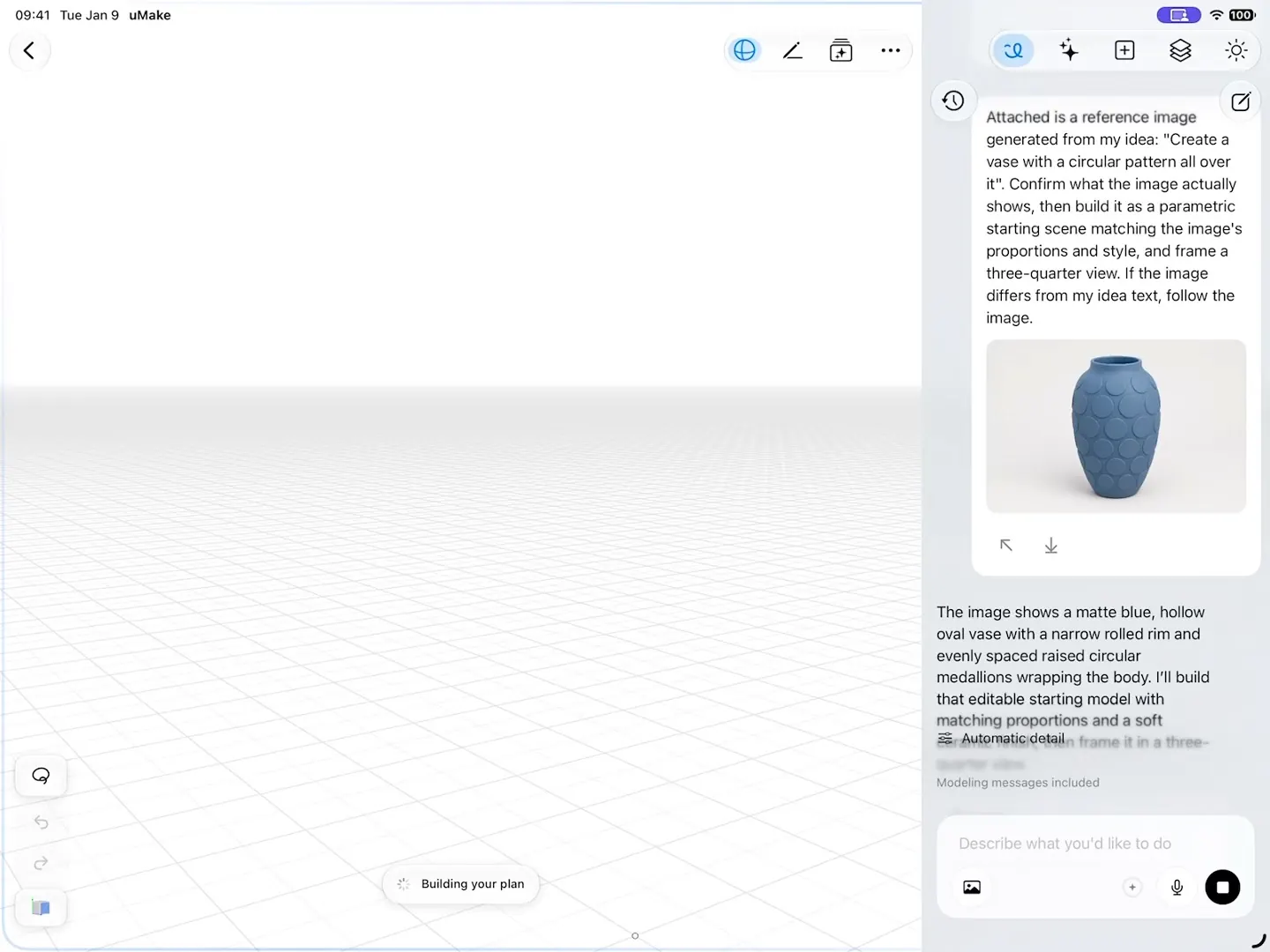
AI Design Partner reads a reference image of a blue vase and builds an editable 3D model of it on the canvas
fig. 1 · AI Design Partner · 0:10

In the 3D editor

Two helpers, one model.

Two AI helpers sit beside your model: one builds and edits geometry, the other shows how it will look.

AI Design Partner

Words in, geometry out.

Ask for a ceramic jug with a comfortable handle, or attach a photo of the vase you have in mind. AI Design Partner builds and edits the 3D geometry right on your canvas, and the chat stays with the design, so you can keep refining it step by step.

  • Floor plans from a plan image: measured walls and openings, up to three floors with stairs
  • Everything it builds is geometry you can model further
  • If it declines a request, no credits are used
More about AI Design Partner

A ceramic jug with a comfortable handle

25 cm
fig. 2 · “A ceramic jug with a comfortable handle”

Live AI Preview

See the finished look as you model.

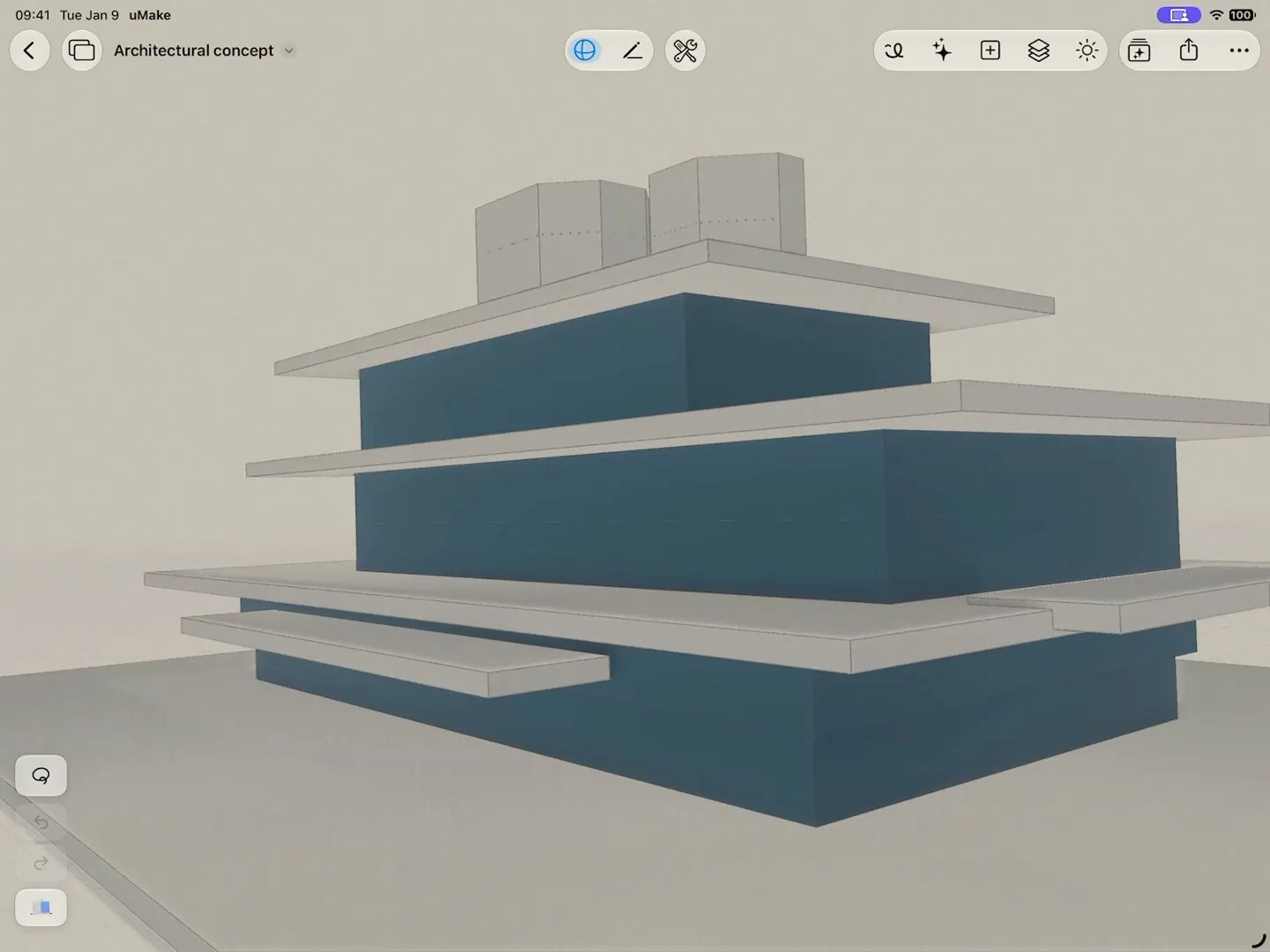
Live AI Preview splits the canvas with a photorealistic render of your design that updates after each change. Steer it with a description, drag a render onto the canvas, or save it to Photos.
  • Creativity, from faithful to free, with Photorealistic, Clay, Product Shot, Sketch and Blueprint presets
  • Enhance re-renders the frame at higher fidelity, composition unchanged
  • 4 Views renders front, side, rear and 3/4 at once; Match a Style and Place in a Photo too
More about Live AI Preview
A massing model beside its Live AI Preview: as the view turns, the photorealistic render of the building follows
fig. 3 · Live AI Preview · 0:07

AI tools in Spaces

AI that works on what you select.

In a Space, select items on the board and the AI Tools panel works on just those, adding what it makes to your board.
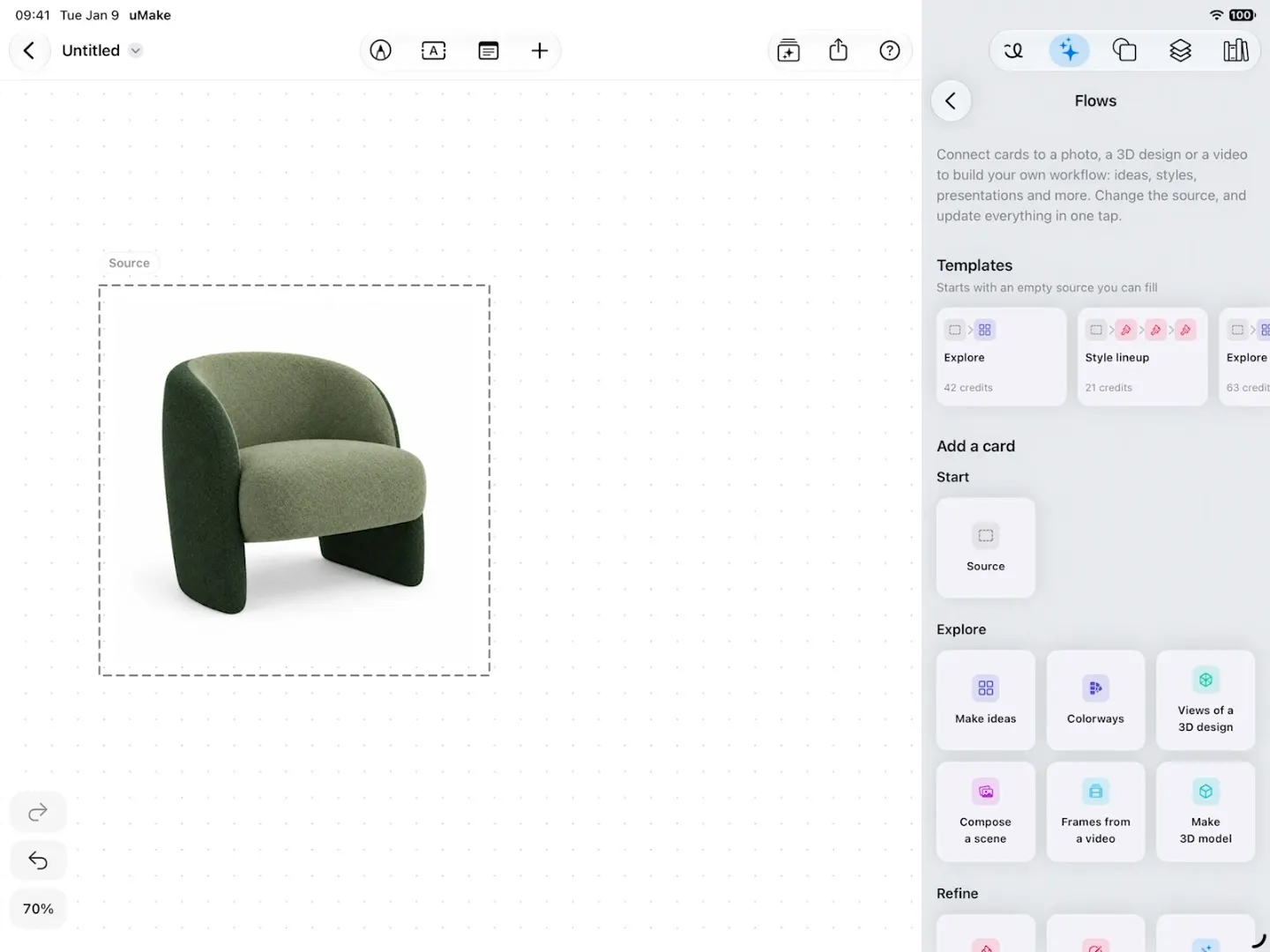
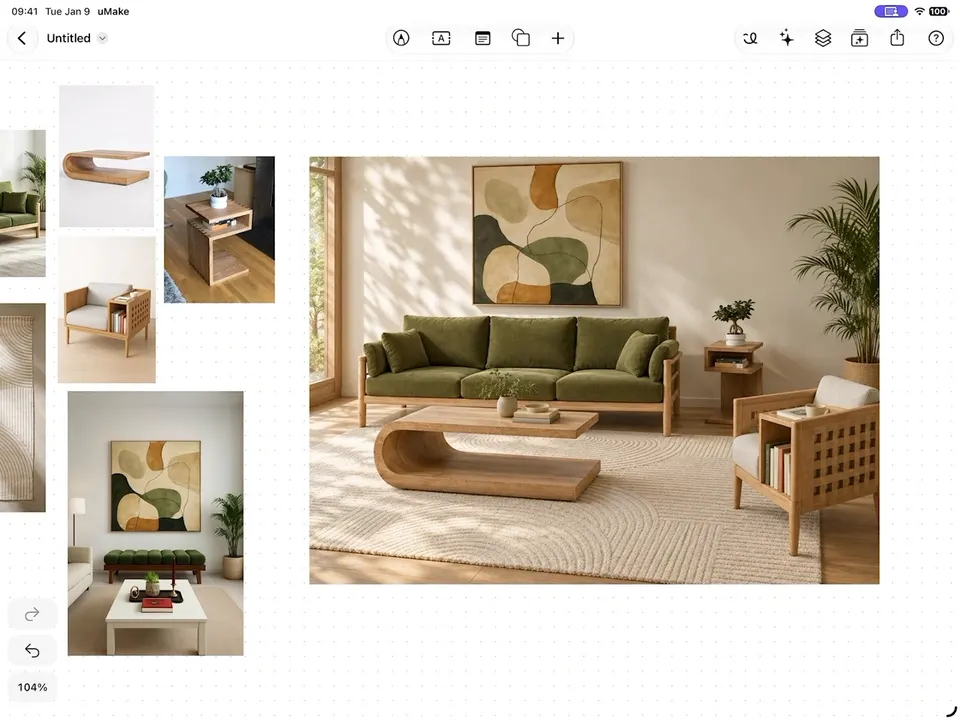
  • A Space in uMake: a green armchair as the Source, a Make ideas card wired to it and its colorways beside it, one composed into a living room, and a card with words making new ideas for the room
    fig. 4 · Flows · 0:25

    Flows

    Connect AI cards to a photo, a 3D design or a video to build your own workflow, and feed one card’s results into the next. Change the source, and one tap on Update redraws the ideas on the new picture.
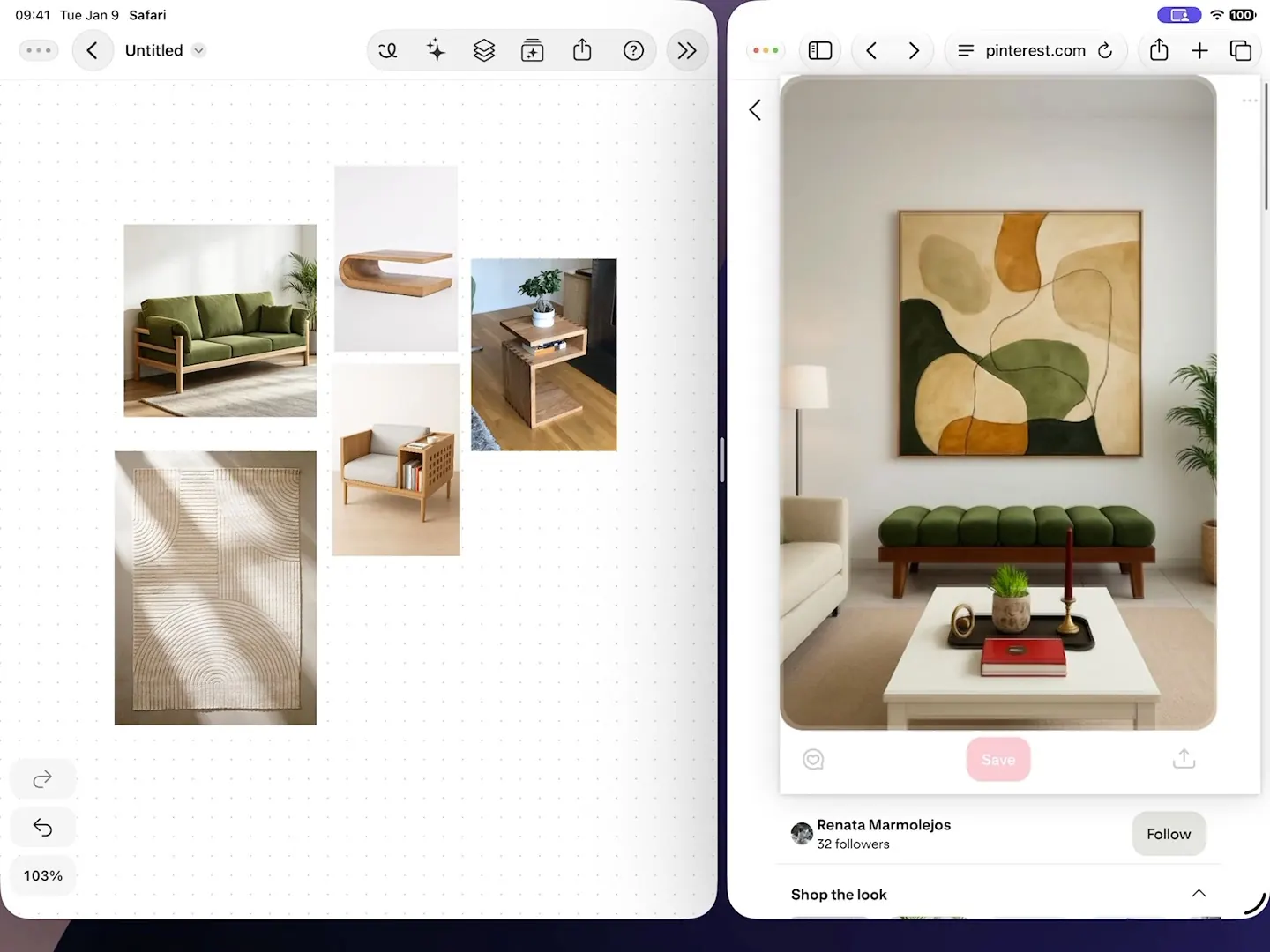
  • References dragged into a Space from a web browser in Split View, selected, and composed into one living-room scene
    fig. 5 · Compose a Scene · 0:18

    Compose a Scene

    Select two to six items, even references dragged in from the web, and compose them into one image. The sources stay as they were.
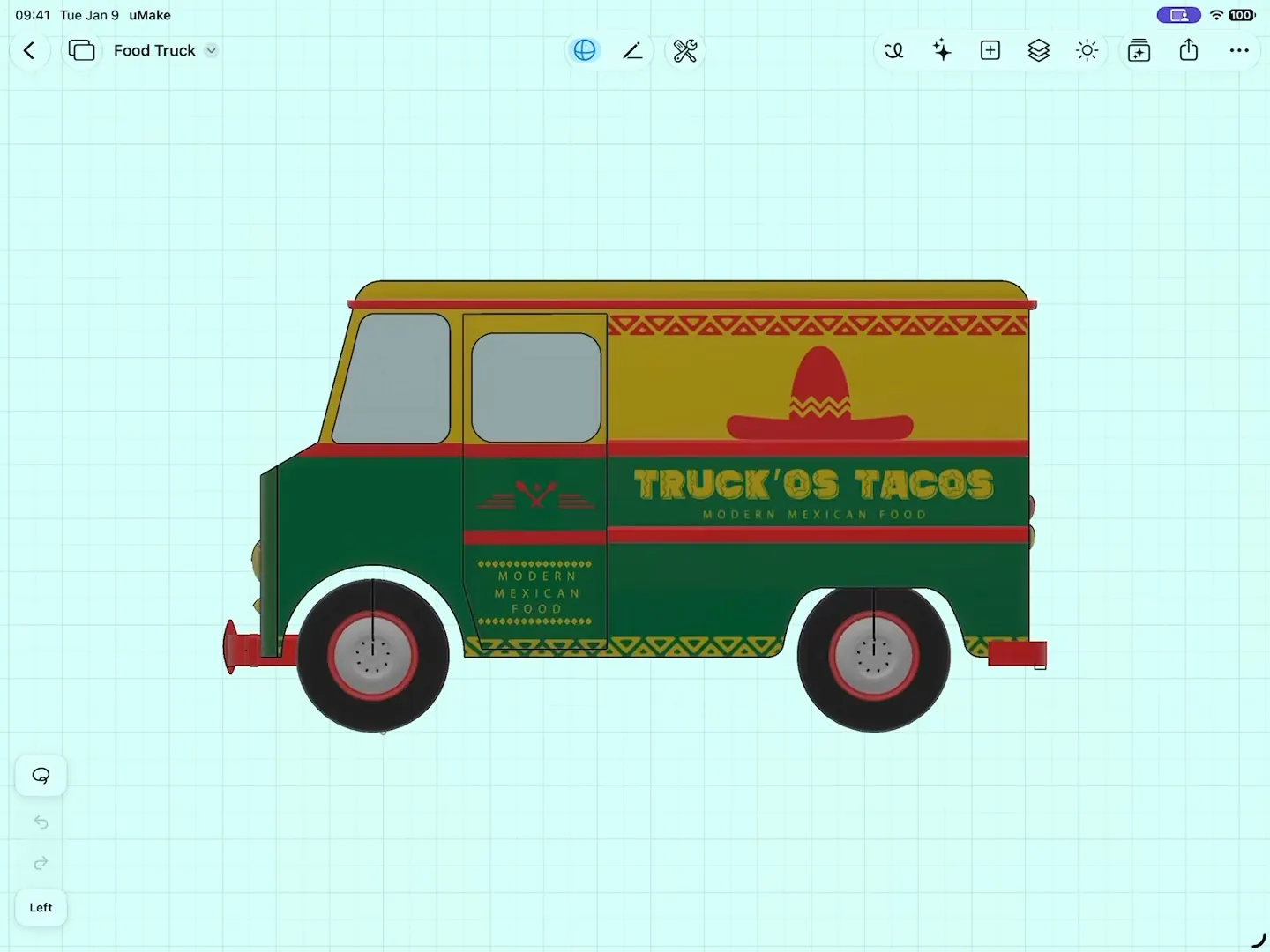
  • A 3D food truck turned to a new angle on its Space card, then Variations returns six new liveries beside it
    fig. 6 · Variations · 0:20

    Variations

    Pick an angle on your 3D design, then explore new directions for it as images, keeping the same subject.
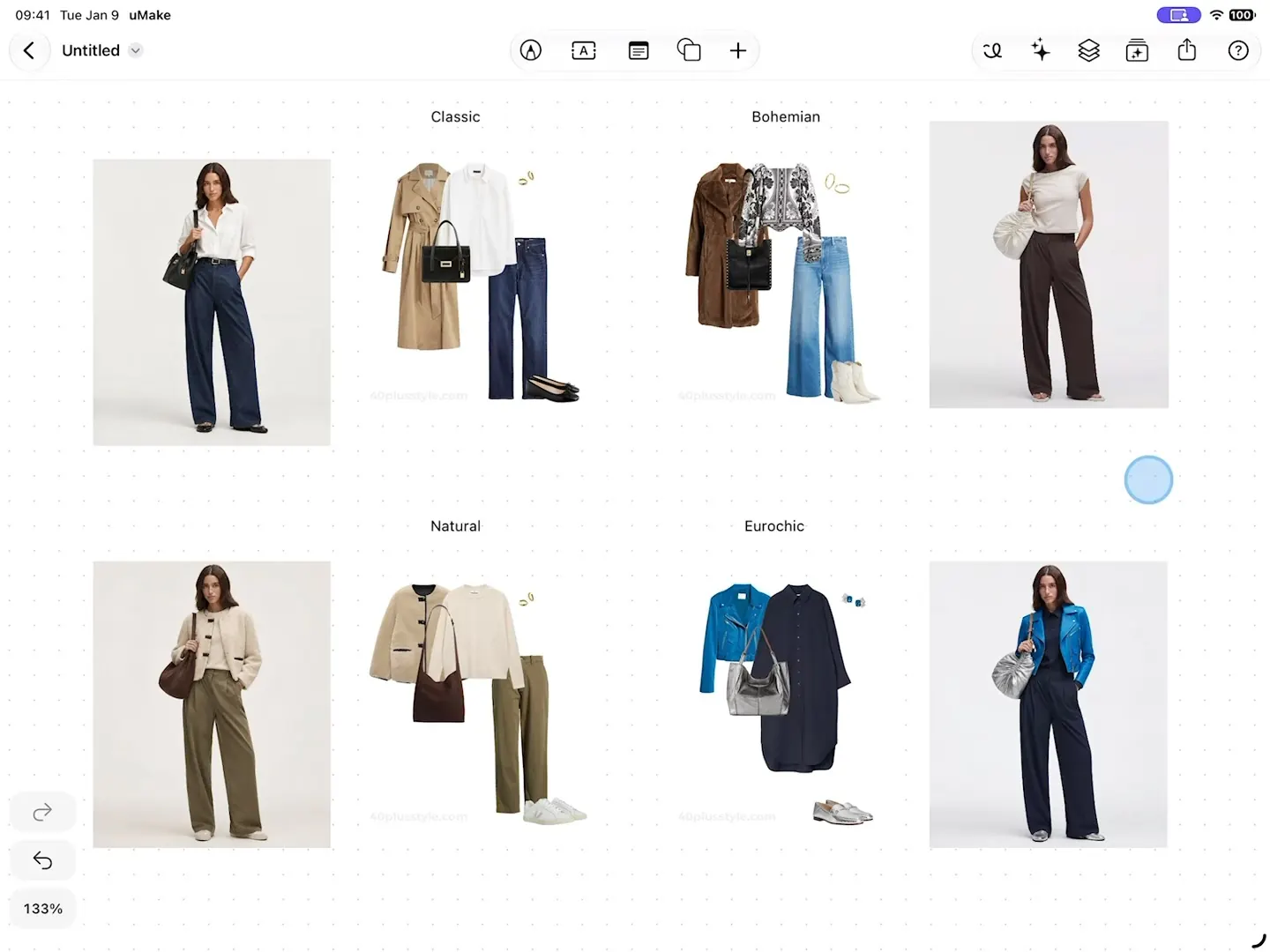
  • A saved style from My Styles applied to a photo of a model, changing her outfit to match the style
    fig. 7 · Apply Style · 0:16

    Apply Style and Save as Style

    Save a look from up to six items, then apply it to other images, so a project keeps one visual language.
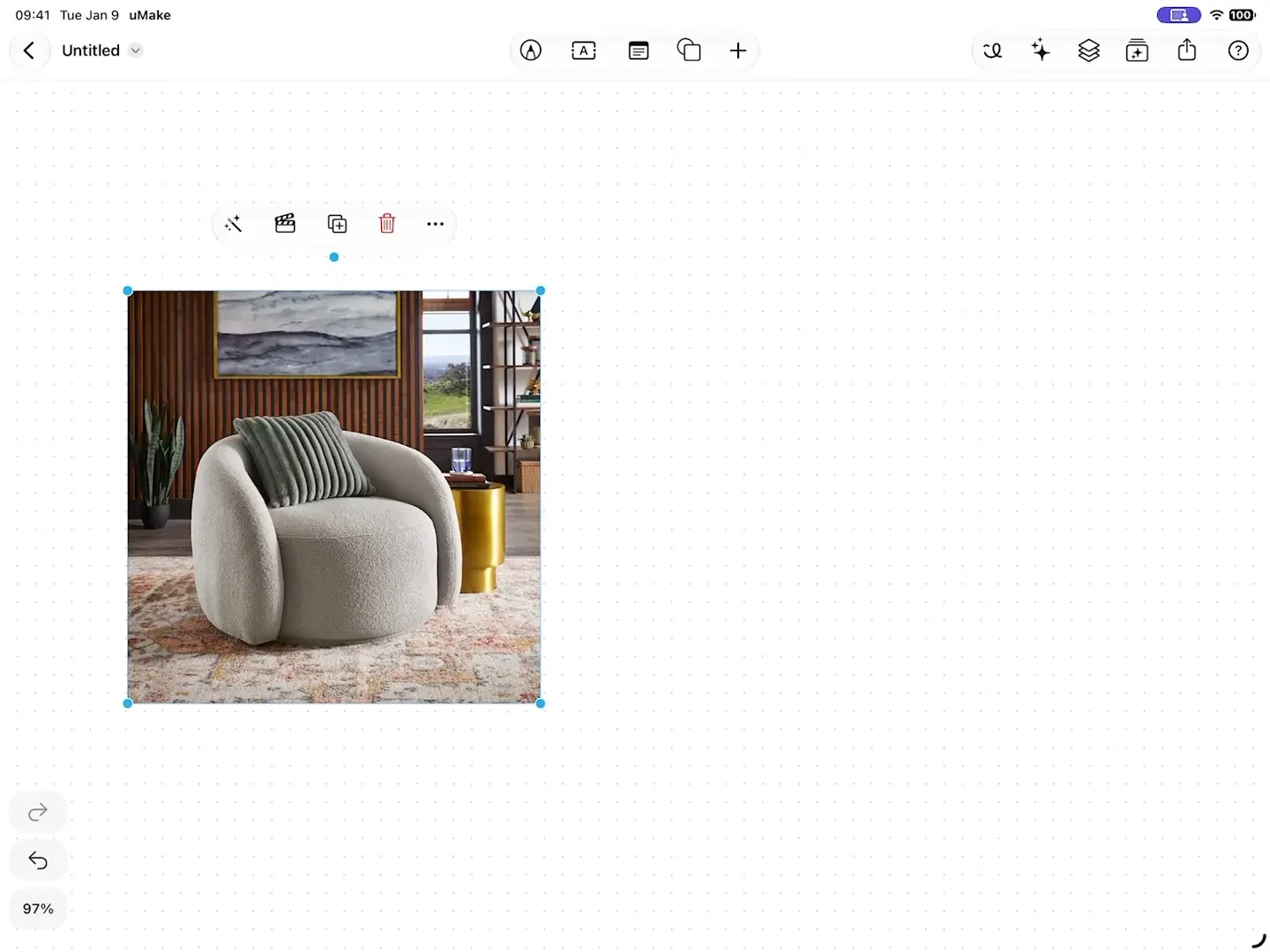
  • Split into Layers finds the objects in a photo of an armchair, makes the armchair whole, and moves it out as its own layer
    fig. 8 · Split into Layers · 0:18

    Split into Layers

    Turn a photo’s objects into layers, redraw a partly hidden one in full with Make Whole, and move each on its own.

Every tool in the panel.

The AI Tools panel in a Space, in the app’s own words. Each tool works on what you select.

Workflows

Flows
Build your own AI workflow and update it in one tap

Create

Scene Studio
Move objects and the camera
Generate Image
A new image from words
Turn an image into a 3D model
A photo becomes a 3D model
Generate Video
Short clips from an idea or an image

Photo

Edit
Change it with words or a sketch
Remove Background
Just the subject, no background
Variations
Several directions, same subject
Presentation Set
Complementary views in one group
Exploded View
Show how its parts fit together
Compose a Scene
Your selected items in one image
Apply Style
Render an image in a style
Save as Style
Keep a look to reuse on other images
Split into Layers
Turn a photo’s objects into layers

Textures & colors

Create custom textures
Seamless textures from words
Generate color palettes
From a description or a photo

What you need

What it takes.

The AI tools run on AI credits; Live AI Preview comes with a paid plan.

AI Design Partner and the AI tools
AI credits
A monthly allowance: 800 credits a month with Basic, 1,600 with Pro and 4,000 with Studio.
Trying them on Free
One-time credits
A one-time grant that doesn’t refresh
Live AI Preview
Basic, Pro or Studio
A live render beside your model, after every change
The Education plan
No allowance
Everything else is included, and credit packs can be bought
A connection
Most tools
AI runs in the cloud; Split into Layers can find a photo’s subject offline

Credits refill every month, on yearly plans too, and don’t roll over. An image uses a few credits and a video clip uses more; the app shows what you have left.

Questions

Questions about AI.

Still curious? Write to hello@umake.com

  1. Does AI Design Partner make pictures or 3D models?

    3D models. It builds and edits real geometry on your canvas from your words or a reference image, so you can keep refining it in the chat or model it yourself with every tool in the editor. Live AI Preview and the AI tools in Spaces are the ones that make images.

  2. Can it build a floor plan from a drawing?

    Yes. Give AI Design Partner a plan image and it builds the floor plan in 3D, with measured walls and openings, rotated plans, concave rooms and polygon floors, up to three floors with slabs and straight or U-shaped stairs.

  3. How do AI credits work?

    Every AI tool draws on one allowance of credits: an image uses a few, a video clip uses more. Basic, Pro and Studio include a monthly allowance that refills every month; Pro has 2× Basic’s and Studio 5×. Free includes one-time credits to try the tools. The Education plan has no allowance, but credit packs can be bought. Compare plans.

  4. Do the AI tools work offline?

    Most AI tools run in the cloud, so they need an internet connection. Split into Layers can find the main subject of a photo on your device, offline, and sketching and modeling work offline too.

An AI partner that builds with you.

Try AI Design Partner.

uMake for iPad, iPhone and Mac