Sketch to 3D
Sketch to 3D model: how to turn a sketch into 3D
Updated October 5, 2026
The short answerThere are two ways to turn a sketch into a 3D model: draw it again in 3D and build surfaces from the curves, or give the sketch to an AI that builds a model from it. uMake does both. You sketch straight into 3D space with Apple Pencil or a finger and lift the curves into surfaces and solids, or AI Design Partner builds editable 3D geometry from your sketch as a reference image.
Pick a route
| Route | What you get | Good for |
|---|---|---|
| Draw it in 3D yourself | Curves, NURBS surfaces and solids, to real dimensions | Exact forms you’ll refine, export or print |
| AI Design Partner | Editable 3D geometry built from your sketch or words | A fast first model to keep working on |
| Turn an image into a 3D model (Spaces) | A 3D model made from a picture | Bringing an object into a board or a scene |
| Live AI Preview | A rendered image of your sketch or model, not a model | Seeing how the idea will look |
Route 1: sketch directly in 3D
In uMake’s 3D editor, every stroke lands in 3D space, on a sketch plane that follows your view or one you pin and save. You can also draw right on a model’s surface, and the stroke wraps to its curvature (Help: Sketch Planes).
Three ways to draw
- Freestyle for loose ideas, with Ink, Pencil, Marker, Charcoal and Chalk brushes. With Fill Area on, a closed stroke fills with color.
- Pen lays down one smooth, even curve per stroke, with Pen Stabilizer for a steadier line.
- Precision chains exact line and arc segments into a profile.
On iPad, Apple Pencil Mode lets the Pencil draw while a finger orbits the view, so you can turn the model and keep sketching. With a keyboard, on iPad or Mac, keys 1, 2 and 3 switch between Precision, Pen and Freestyle.
From curves to surfaces and solids
- Close a loop of curves and uMake fills it with a surface while Auto Surface is on (Help: Create a Surface).
- Extrude a closed curve or flat surface into a solid.
- Revolve half a profile around an axis for vases, bottles and turned parts.
- Loft a smooth skin between two or more profile curves.
- Reshape any surface by its control points, then Fillet & Chamfer the edges and Combine shapes.
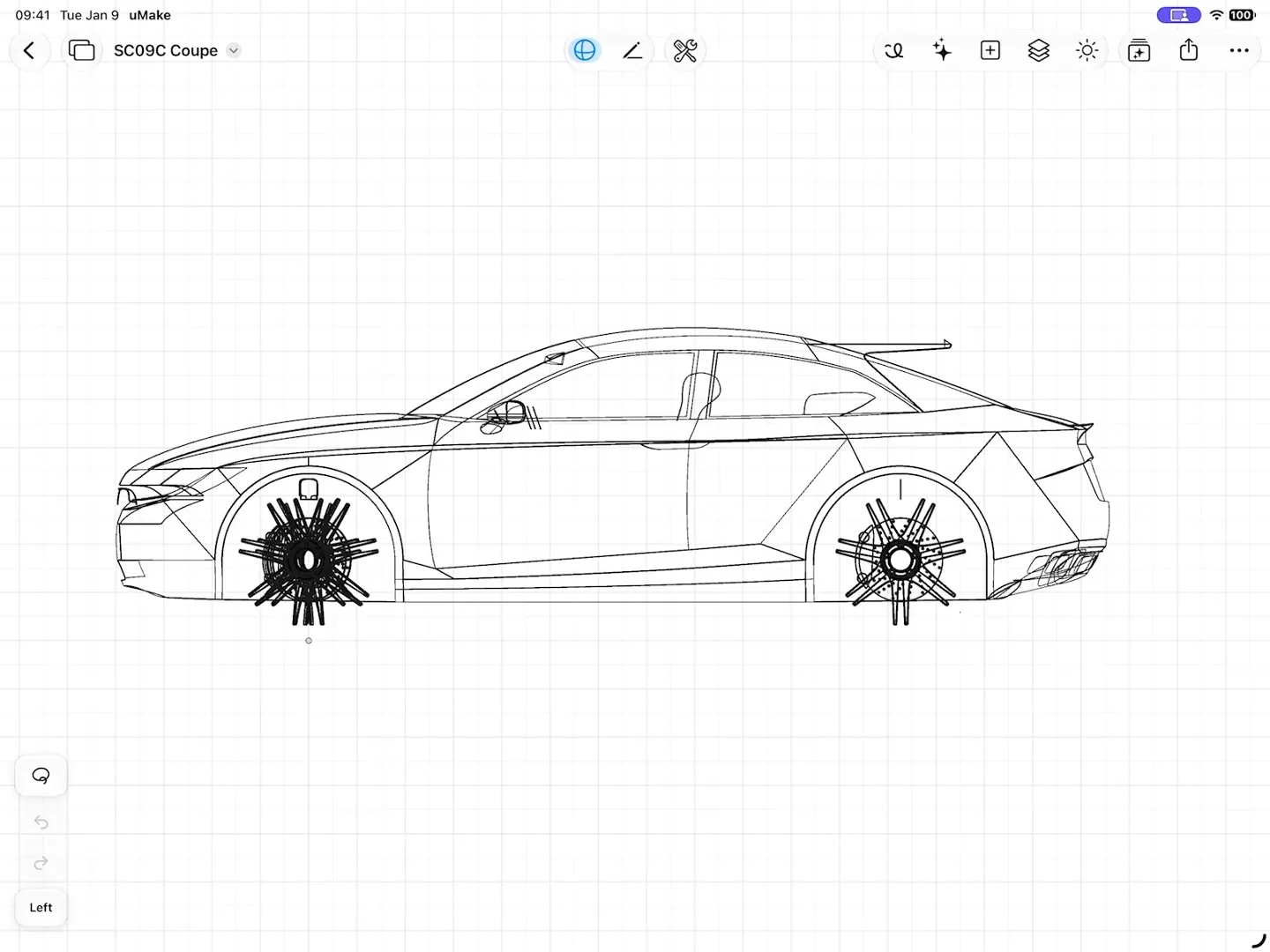
Put a photo of your paper sketch in a Space next to the 3D design, as a live card, to compare the two as you go. Sketch the main profiles first, from two or three views, then build surfaces between them; details come last.
Route 2: let AI build from your sketch
AI Design Partner
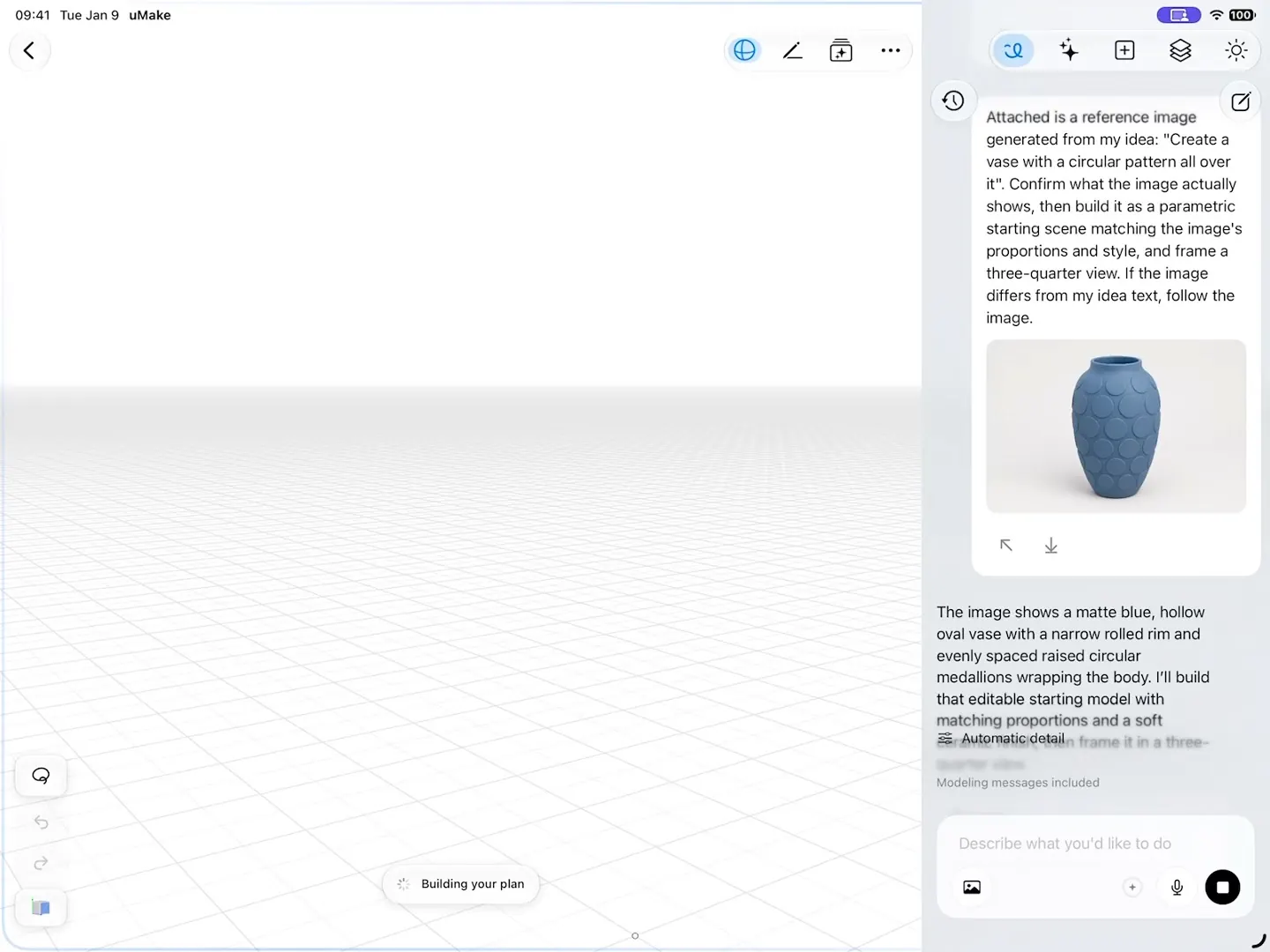
AI Design Partner is a chat beside your model that builds and edits 3D geometry on the canvas, from words or a reference image. Attach a photo of your sketch, say what it is, and keep refining in the chat. What it builds is real geometry you can model further with every tool above, not a picture (AI in uMake).
Turn an image into a 3D model, in Spaces
In a Space, the AI Tools panel has Turn an image into a 3D model: a picture becomes a 3D model you can place on the board and use. It suits objects you want in a board or a scene; for a form you’ll keep refining, Design Partner or the modeling tools give you more control.
Sketch to render, not to model
If what you need is an image, not geometry, Live Preview in Spaces renders the board beside you and follows your strokes as you doodle, and Live AI Preview in the 3D editor renders your model after each change (Help: Live Preview in Spaces).
Tips for sketches that model well
- Draw the silhouette from the front and the side; most objects are defined by two or three outlines.
- Keep construction lines light and the final edges clear, whether you draw on paper for AI or in 3D yourself.
- Note real sizes on the sketch, so you can set the model to millimeters, centimeters or inches and check it.
- Treat the first model as a draft. Change proportions in 3D, where they are easier to judge than on paper.
What you need
Drawing and editing in the 3D editor come with a plan. The AI routes draw on AI credits, which come monthly with a paid plan and as a one-time grant on Free, and the live previews need a paid plan (compare plans). uMake runs on iPad, iPhone, iPhone Duo and a Mac with Apple silicon; Apple Pencil is optional.
Can AI turn a 2D sketch into a 3D model?
Yes. In uMake, attach your sketch to AI Design Partner as a reference image and it builds editable 3D geometry on your canvas, which you can refine in the chat or with the modeling tools.
Do I need an Apple Pencil?
No. Every tool works with your fingers, and on a Mac with a keyboard and trackpad. Apple Pencil makes freehand sketching more natural, and Apple Pencil Mode lets it draw while a finger orbits the view.
Can I 3D print a model made from a sketch?
Yes. With a plan, export STL or OBJ, which are labeled for 3D printing, and open the file in your slicer.
Is a sketch in 3D the same as a 3D model?
Not yet. Strokes drawn in 3D are curves; they become a model when you build surfaces and solids from them with Create a Surface, Extrude, Revolve or Loft.
Try it in uMake.
uMake is free to download for iPad, iPhone and Mac.