Product design
Product design from sketch to CAD, on iPad
Updated October 5, 2026
The short answerOn an iPad you can take a product from the first sketch to a CAD surface model: sketch loosely in 3D, redraw the lines as precise curves, lift them into NURBS surfaces, then export STEP or IGES for your engineering CAD. In uMake that all happens in one file, with Combine and Project Shape for details and AI for quick variants and renders. Engineering detail, drawings and tolerancing stay in your engineering CAD.
Why do the early stage on an iPad
The gap between a sketch and a CAD model is where many product ideas slow down: a drawing on paper has to be rebuilt from nothing by someone at a desk. Sketching directly in 3D on an iPad closes that gap. The sketch already has depth, the curves you refine are the curves you model with, and the surface model goes to engineering as a standard STEP or IGES file.
uMake runs on iPad, iPhone and a Mac with Apple silicon (iPadOS and iOS 17.6 or later), with the same designs everywhere. Apple Pencil is optional, and drawing, editing and export in the 3D editor need a plan (compare plans).
The workflow in uMake
| Stage | Tools | You end up with |
|---|---|---|
| Ideate | Freestyle, Sketch Planes, Apple Pencil Mode | Loose 3D sketches you can orbit |
| Define | Precision, Pen, Control-Point Editing | Clean, exact curves |
| Surface | Create a Surface, Loft, Revolve, Extrude | NURBS surfaces and solids |
| Detail | Combine, Project Shape, Fillet & Chamfer | Cuts, grilles, logos, rounded edges |
| Present | Materials, Live AI Preview, Variations | Renders and options to review |
| Hand off | STEP or IGES export | A file your engineering CAD opens |
1. Ideate with Freestyle
Freestyle gives you ink, pencil, marker, charcoal and chalk brushes, and every stroke lands on a sketch plane in 3D. Orbit to aim the plane, or pin it to keep sketching on the same sheet while you turn around it (Help: Sketch Planes). On iPad, Apple Pencil Mode lets the Pencil draw while one finger orbits.
2. Define the curves
Trace the strokes that work with Pen, which settles each drag into one smooth curve, or with Precision for exact line and arc segments typed to size. Set the document to millimeters or inches first. Then drag the curves’ control points until the highlights read right (Help: Control-Point Editing).
3. Build the surfaces
A closed loop of curves fills with a surface while Auto Surface is on. Loft skins a smooth surface between several profiles, Revolve spins a profile into a round body, and Extrude and Push & Pull give thickness. Every surface is NURBS, reshaped by its control points.
4. Add the details: Project Shape and Combine
Project Shape conforms a flat grille, logo or pattern onto a curved body. Follow Surface aligns it to the curvature, and Options set size, rotation and clearance in document units. Use Inset to sink it slightly into the body, then Combine › Subtract cuts it in, after a 3D preview. Project Shape itself doesn’t cut holes; Combine does (Help: Project Shape).
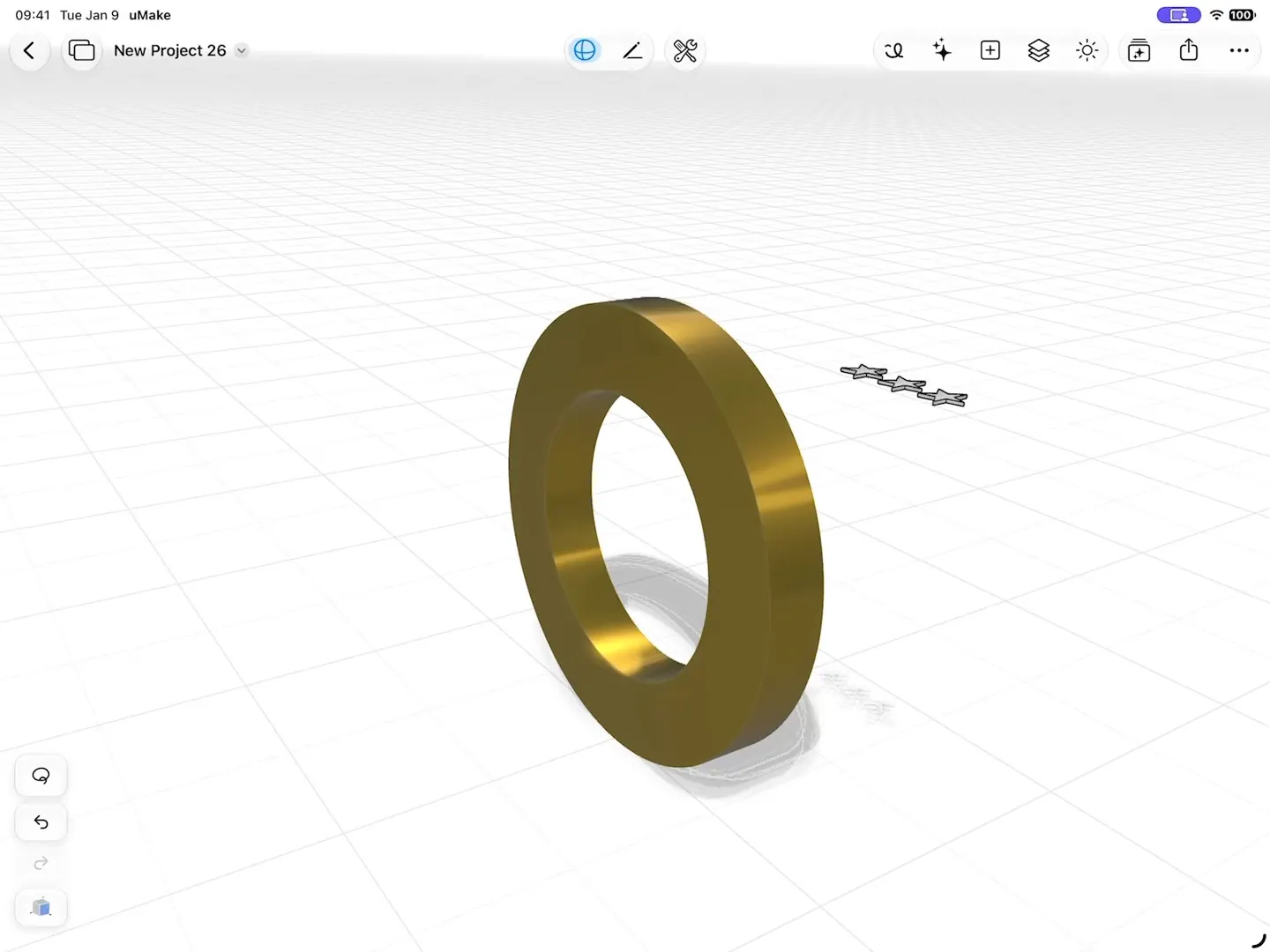
Fillet & Chamfer rounds the corners, and Combine also joins parts (Union) or keeps their overlap (Intersect). You choose the Target, can keep the originals, and can edit a Boolean result later (Help: Combine).
AI for variants and renders
- AI Design Partner builds and edits editable 3D geometry from a description or a reference image, so a variant you ask for is still a model, not a picture. It can also run Project Shape for you: “Project the grille onto the speaker body.”
- Live AI Preview shows a photorealistic render beside the model as you work, with styles such as Product Shot, Clay and Sketch, and 4 Views renders front, side, rear and 3/4 at once.
- In a Space, Variations explores colors and finishes around one image, and Exploded View shows how the parts fit together.
AI renders are for reviewing a direction, not for checking geometry. When a dimension or a surface matters, look at the model itself.
Hand off to engineering
With a plan, Save As exports STEP or IGES, the formats engineering CAD tools read for precise surfaces. Your engineer can then add wall thicknesses, draft, tolerances, assemblies and drawings in their own tool. uMake also exports OBJ and STL for a quick 3D print of the form, and USDZ for AR.
Files come back the other way too: uMake opens STEP, IGES, OBJ, STL and more for free, so you can sketch over a part from engineering. It doesn’t open or write DWG or DXF, and it isn’t a parametric, history-based engineering tool. See uMake for product design.
Can I go from a sketch to a real CAD model on an iPad?
Yes. In uMake you sketch in 3D, redraw the lines as precise curves, build NURBS surfaces and solids from them in real units, and export STEP or IGES for your engineering CAD.
Will my engineering CAD open uMake files?
Export STEP or IGES with a plan: both are standard CAD exchange formats that engineering tools read. uMake’s own UMK format is for uMake.
Does uMake replace engineering CAD?
No. uMake is for form: concept, surfaces and details. Tolerances, manufacturing detail and drawings belong in your engineering CAD, which is why the hand-off is STEP or IGES.
Can AI generate product variants?
Yes. AI Design Partner builds editable 3D variants from a description or a reference image, and Variations in a Space explores finishes around an image. Both use AI credits; see pricing.
Try it in uMake.
uMake is free to download for iPad, iPhone and Mac.