Jewelry design
Jewelry design app for iPad: model rings and pendants in 3D
Updated October 5, 2026
The short answerTo design jewelry on an iPad, use a 3D modeling app that works in millimeters and exports files a printer or a casting partner can use. In uMake you revolve a ring band from a profile, wrap a motif onto its curve with Project Shape, engrave it with Combine, and export STL or OBJ. uMake has no casting-specific tools, so your printer or caster prepares the file for production.
What jewelry design needs from a 3D app
- Small, exact sizes. A band’s width and thickness are a few millimeters, so the app has to work in millimeters and take typed values.
- Round forms. Rings, bangles and many pendants start as a profile spun around an axis.
- Details on curved surfaces. Motifs, patterns and lettering have to follow the curve of a band.
- A file for production. Mesh files such as STL and OBJ go to a 3D printer or to a partner who prints and casts.
uMake is a general 3D modeling app with exact NURBS tools, not a dedicated jewelry CAD program. That makes it a good fit for designers who want to work out a form, try motifs and show a client, then hand a clean file to the people who make the piece.
What you need
- An iPad with iPadOS 17.6 or later. uMake also runs on iPhone and on a Mac with Apple silicon.
- Apple Pencil is optional; fingers work for every tool.
- A plan to draw, edit and export in the 3D editor (compare plans).
A ring with an engraved motif, step by step
- Create a 3D design and set its units to millimeters.
- Draw the band’s cross-section with Precision: the inner edge, the outer curve and the width, typed to size on the measurement keypad. Place it at the distance from the axis that gives the inner diameter you want (Help: Draw a Curve (Precision)).
- Select the profile and tap Revolve. Define the direction and drag to sweep it around the axis, and use the Angle option for an exact 360° (Help: Revolve). Then measure the inner diameter with Dimensions & Measuring.
- Draw the motif flat: a star, a leaf, a monogram. For lettering, add text, tap Make Object and extrude it (Help: 3D Text).
- Select the motif, open Project Shape and tap the band. Follow Surface wraps it onto the curve; Options set its size, rotation and clearance in millimeters, and you drag to move it along the band (Help: Project Shape).
- Use Inset so the motif overlaps the band slightly, then Apply.
- Open Combine, set the band as the Target, choose Subtract and tap Preview. Check the cut in 3D, then Apply (Help: Combine). Choose Union instead to raise the motif.
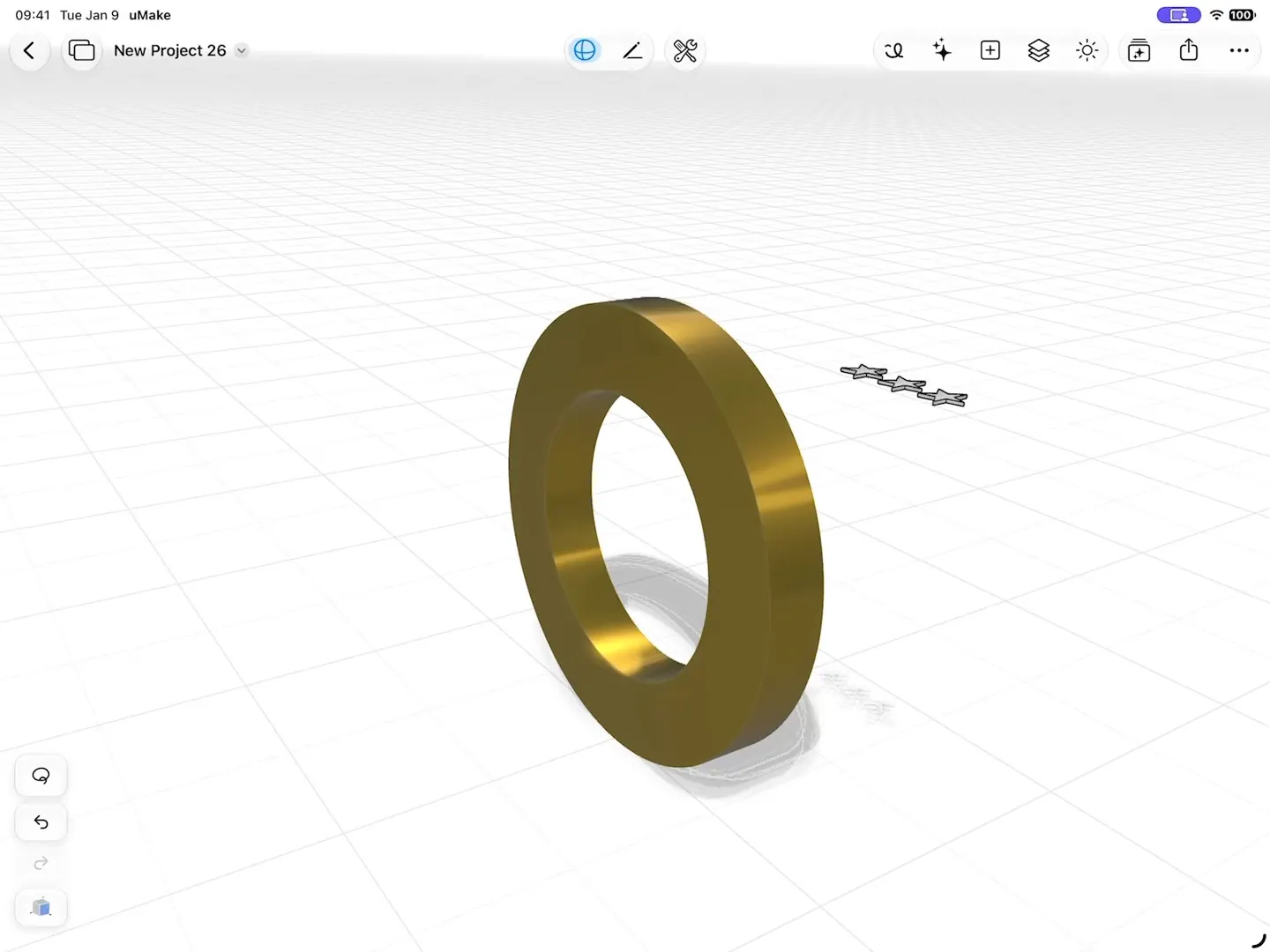
Project Shape conforms a shape to the band; it doesn’t cut anything. The engraving happens in Combine. To repeat a motif around the band, use Array with the Circular type before you combine (Help: Array).
Pendants and other forms
For a flat pendant, draw its outline with Precision or Pen, round its corners with Fillet & Chamfer, and extrude it to thickness. A bail or a loop can be revolved or extruded along a path, and Mirror makes symmetrical pieces such as a pair of earrings. Mesh Editing lets you tidy up an imported or AI-made mesh by face, edge or vertex.
See it in metal
- Apply a PBR material and raise Metallic and lower Roughness for polished metal, or raise Roughness for a brushed finish (Help: PBR Materials).
- Live AI Preview renders the piece photorealistically beside the model, with a Product Shot style for clean, studio-like images (AI in uMake).
- AI Design Partner builds an editable variant from a description or a reference image, for example a wider band or a different motif.
- View in AR on iPhone or iPad puts the piece on a real table at real size.
Export for 3D printing or casting
| Going to | Send | Notes |
|---|---|---|
| Your own 3D printer | STL or OBJ | Open it in your slicer; uMake doesn’t send jobs to a printer |
| A printing or casting partner | STL or OBJ, or STEP if they ask for CAD | Agree the units: millimeters are the usual choice |
| A client, to view in AR | USDZ | Apple’s AR format, with materials |
uMake doesn’t add sprues, build casting trees, compensate for metal shrinkage or keep a library of stones and settings. Those steps belong to your printer’s software or your casting partner, who will also check minimum wall thicknesses for the metal and process they use. Before you send a file, measure the thinnest parts yourself with Dimensions & Measuring (Help).
Can I design rings on an iPad?
Yes. In uMake you draw a band profile in millimeters, revolve it into a ring, wrap motifs onto it with Project Shape and engrave them with Combine, then export STL or OBJ.
Does uMake export files for jewelry casting?
It exports STL, OBJ, STEP and IGES, which printing and casting partners work with. It has no casting-specific tools such as sprues or casting trees; your partner prepares the file for casting.
Can I engrave text on a ring?
The same way the stars are engraved in the clip: 3D Text turns lettering into geometry, Project Shape wraps it onto the curved band, and Combine › Subtract cuts it in. Check small lettering at real size before you export, and ask your printer or caster about the smallest detail they can reproduce.
Do I need an Apple Pencil?
No. Every tool works with fingers, and exact sizes are typed on the measurement keypad. Apple Pencil helps if you like to sketch ideas first.
Try it in uMake.
uMake is free to download for iPad, iPhone and Mac.