3D printing
3D modeling for printing: from an idea to a printable file
Updated October 5, 2026
The short answerTo 3D print your own design, model it to real dimensions as a closed solid, export it as STL or OBJ, and open that file in your printer’s slicer, which prepares the print. In uMake you model on iPad, iPhone or Mac and, with a plan, export STL or OBJ (both labeled for 3D printing in the app); uMake doesn’t send jobs to a printer itself.
How a model becomes a print
- Model the object in a 3D app, at the size you want it printed.
- Export a mesh file: STL or OBJ are the most widely accepted.
- Slice it in your printer’s slicer software, which turns the mesh into layers and printer instructions, and adds supports where needed.
- Print, from the slicer or the printer itself.
uMake covers the first two steps. The slicer belongs to your printer or print service, and every popular one opens STL.
Modeling for printing in uMake
Start at real size
Set the document units first: millimeters suit most desktop printing, and uMake also works in centimeters, meters, inches and feet. Draw exact profiles with Precision, and use Dimensions & Measuring to check and type exact sizes.
Build solids, not just surfaces
A printer needs a closed, solid shape with real thickness. Build volume with Extrude, Push & Pull, Revolve and Loft, and soften edges with Fillet & Chamfer. Combine joins, subtracts or intersects shapes, and shows the result in 3D before you apply it, which is handy for cutting holes, slots and recesses.
Add detail that prints
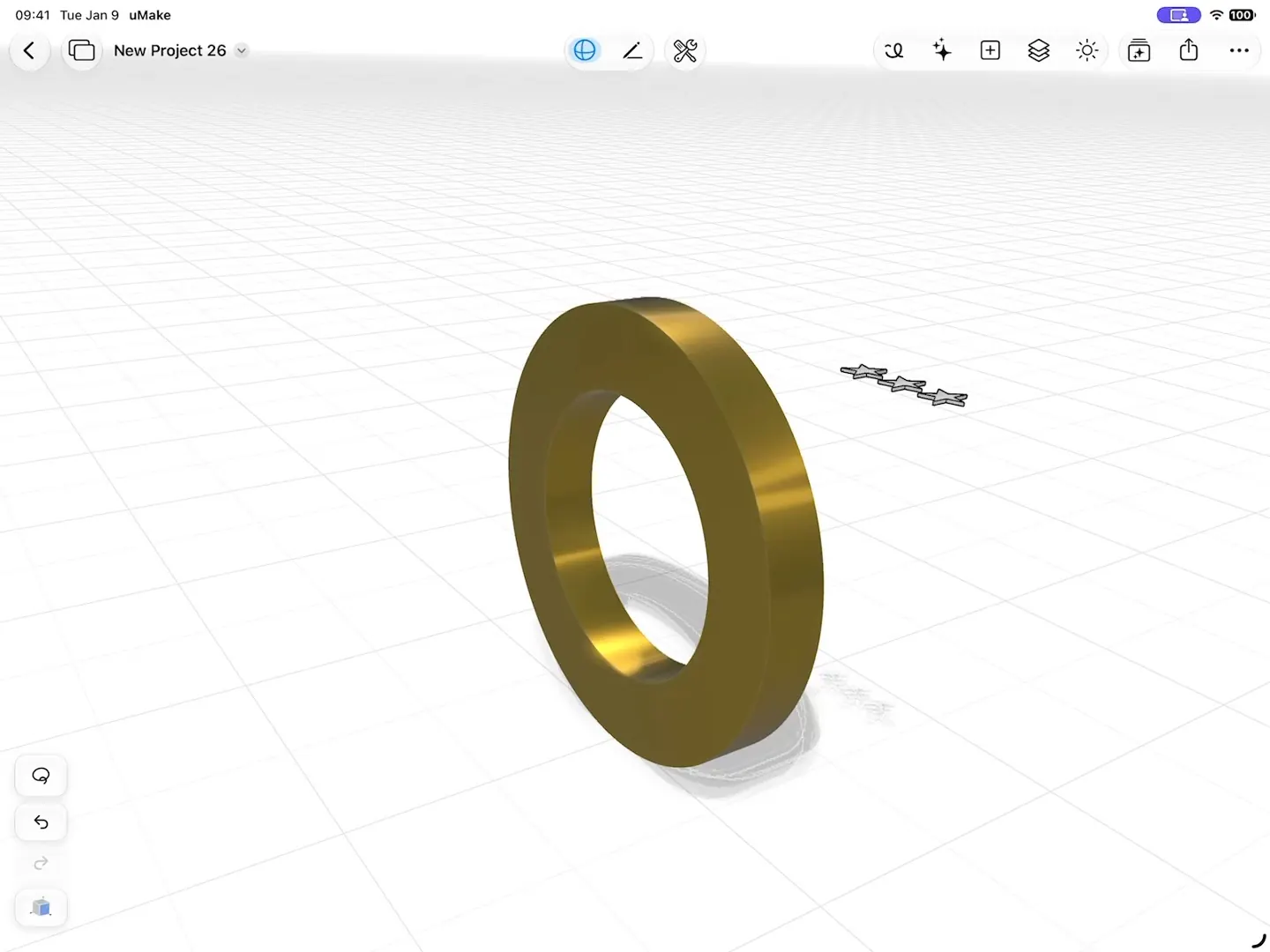
Project Shape wraps a flat logo, grille or pattern onto a curved body, and Combine › Subtract then cuts it in as an engraving. 3D Text turns lettering into real geometry for nameplates and signs.
Exporting for your slicer
| Format | Use it for |
|---|---|
| STL | 3D printing: the format almost every slicer opens |
| OBJ | 3D printing, and other 3D apps |
| STEP, IGES | Desktop CAD tools, for further engineering |
| USDZ | AR on Apple devices, with materials |
Open the share menu, choose Save As and pick STL or OBJ (Export & Share), then send the file to your slicer by AirDrop, Files or email. uMake doesn’t export 3MF, and it doesn’t connect to printers or slicers directly.
Check the scale when the file opens in your slicer. If a part comes in far too big or too small, the slicer may be reading the file in different units; most slicers let you set the units or scale on import.
A pre-print checklist
- Closed shapes. Every part should be a closed solid, with no open edges or stray surfaces.
- Wall thickness. Very thin walls and fine details may not print; your printer’s guidelines say what’s too thin.
- A flat base. A flat face to stand on makes printing easier and reduces supports.
- Overhangs. Steep overhangs need supports; rotating the part in the slicer can reduce them.
- One file per part if they print separately, or as one model if they print together.
Printing models you didn’t make
uMake opens STL, OBJ, STEP, IGES and other 3D files for free, so you can inspect a downloaded model on iPad, iPhone or Mac before printing it, and see it at real size with View in AR on iPhone or iPad. With a plan, you can also edit it. Mesh Edit lets you select, move, extrude or delete a mesh’s faces, edges and vertices, which helps with imported STL files. You can also start from a description: AI Design Partner builds editable 3D geometry from words or a reference image, which you then refine for printing (AI in uMake).
Can uMake send a model straight to my 3D printer?
No. Export STL or OBJ from uMake, then open the file in your printer’s slicer, which prepares and sends the print.
Which file format should I use for 3D printing?
STL is the safest choice: almost every slicer opens it. uMake exports STL and OBJ, both labeled for 3D printing, with a plan. It doesn’t export 3MF.
Can I edit an STL file in uMake?
Yes. Opening STL files is free, and with a plan Mesh Edit lets you select, move, extrude or delete the mesh’s faces, edges and vertices.
Is exporting for 3D printing free?
Opening and viewing 3D files is free. Drawing, editing and exporting STL or OBJ come with a plan. See pricing.
Try it in uMake.
uMake is free to download for iPad, iPhone and Mac.