Live AI Preview
Live AI Preview: see the finished look as you model.
Live AI Preview splits the canvas with a photorealistic render of your design that updates after each change. Steer it with a description, drag a render onto the canvas, or save it to Photos.
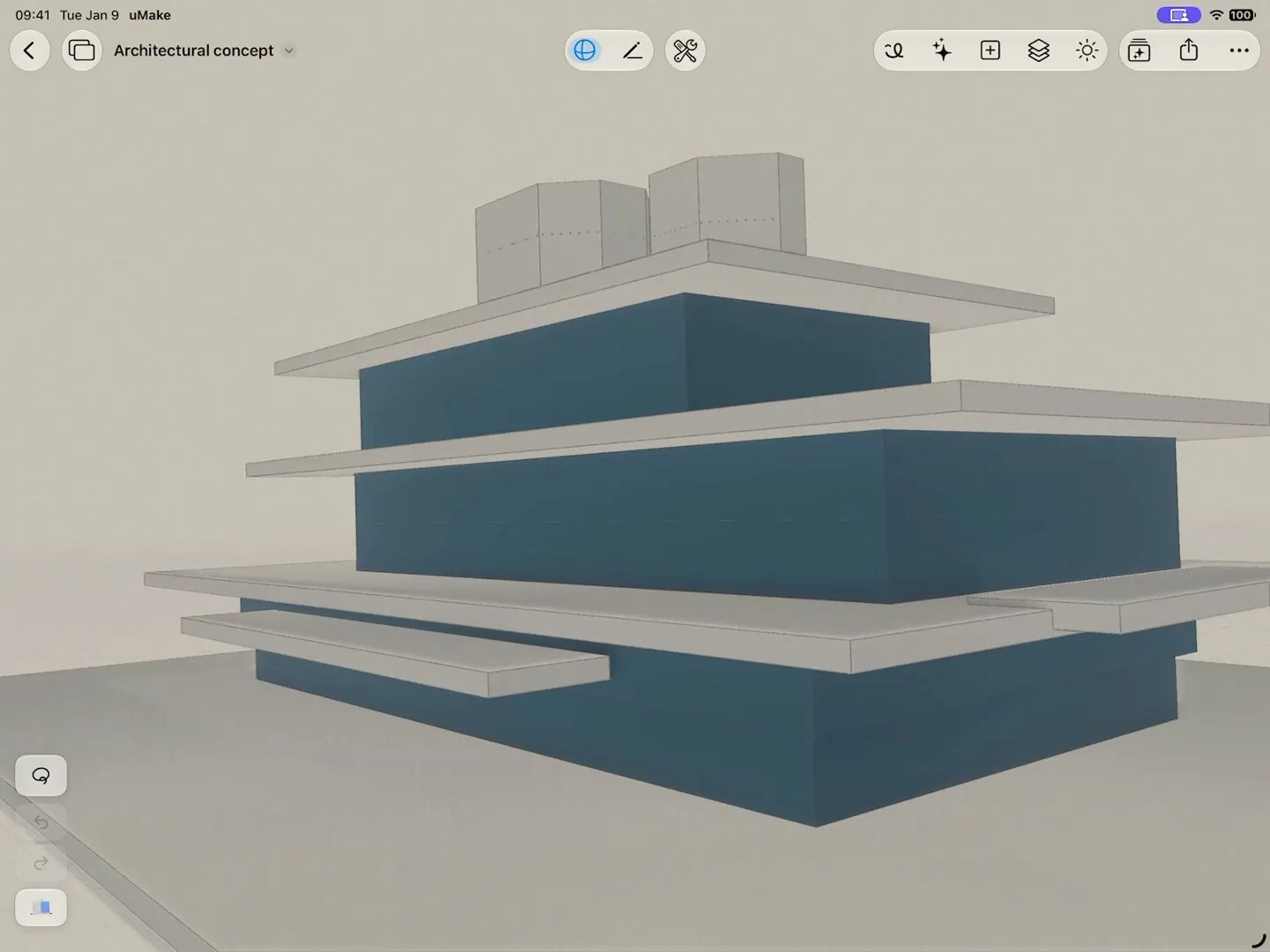
What it does
What Live AI Preview does.
- Renders your model photorealistically beside it, updating after each change
- Creativity, from faithful to free, with Photorealistic, Clay, Product Shot, Sketch and Blueprint presets
- Enhance re-renders the frame you’re looking at in higher fidelity, composition unchanged
- 4 Views renders front, side, rear and three-quarter views at once
- Match a Style from an image you upload, or Place in a Photo to put your model into a picture
- Drag a render onto the canvas, or save it to Photos
How to use it
Step by step.
From the app’s own help, with steps for Apple Pencil and a keyboard there too.
- Tap the Live Preview button on the right side of the editor's top toolbar to split the canvas with a live AI render pane.
- Keep designing on the canvas half — while Update Automatically is on, the pane renders a fresh AI image of your design after each change.
- Type in the "Describe the look…" field at the bottom of the preview pane and tap the send button to steer what the AI renders.
- Drag the rendered image straight onto your canvas, or open the ⋯ menu to Save to Photos or Insert into Design.
- To stop, open the ⋯ menu in the preview header and choose Close Preview.
More: Creativity & Styles, Enhance, Style, Photos & 4 Views.
What you need
What it takes.
- A paid plan
- Basic, Pro or Studio
- Live AI Preview isn’t part of Free or the Education plan
- AI credits
- AI credits
- A monthly allowance with Basic, Pro and Studio; one-time credits on Free to try it
- A connection
- Online
- Renders run in the cloud
Does Live AI Preview change my model?
No. It renders what your model looks like; the model itself stays exactly as you built it.
Which plans include Live AI Preview?
Basic, Pro and Studio. It isn’t part of Free or the Education plan. See pricing.
Can I use the renders in a presentation?
Yes. Save a render to Photos or drag it onto the canvas, and use it in your slides or on a Space alongside your sketches.
Is there Live Preview in Spaces too?
Yes. In a Space, Live Preview renders the board and follows your strokes as you doodle, on the same paid plans.
Keep exploring
More uMake.
Try it in uMake.
uMake for iPad, iPhone and Mac