Students
The 3D design app for architecture and design students
Updated October 5, 2026
The short answerStudents need an app that goes from a quick sketch to a measured model, and then to images for a crit and a portfolio. uMake does that on iPad, iPhone and Mac: sketch and model in 3D, gather a project on a Space for the pin-up, and export images and 3D files. With a class link from your teacher or school, the Education plan gives you everything except the monthly AI allowance, free for 12 months.
What a design student needs
- Sketch fast and turn the sketch into a model without redrawing it somewhere else.
- Real dimensions, because a studio project is a building, a room or an object of a real size.
- A board to gather references, process sketches and models for a crit.
- Images and files for the portfolio, the 3D printer and the laser lab.
- One device you carry anyway: an iPad, an iPhone, or a Mac with Apple silicon.
From a sketch to a model
Start with Freestyle in the 3D editor: ink, pencil, marker, charcoal or chalk strokes that land in 3D, so the first idea can already be turned and looked at. Then draw exact profiles with Precision, set in meters, millimeters or feet, and build the model with Extrude, Push & Pull, Revolve and Loft (Sketch & model). For a site or a building, Components keep repeated elements linked: change one window or tree, and every copy follows.
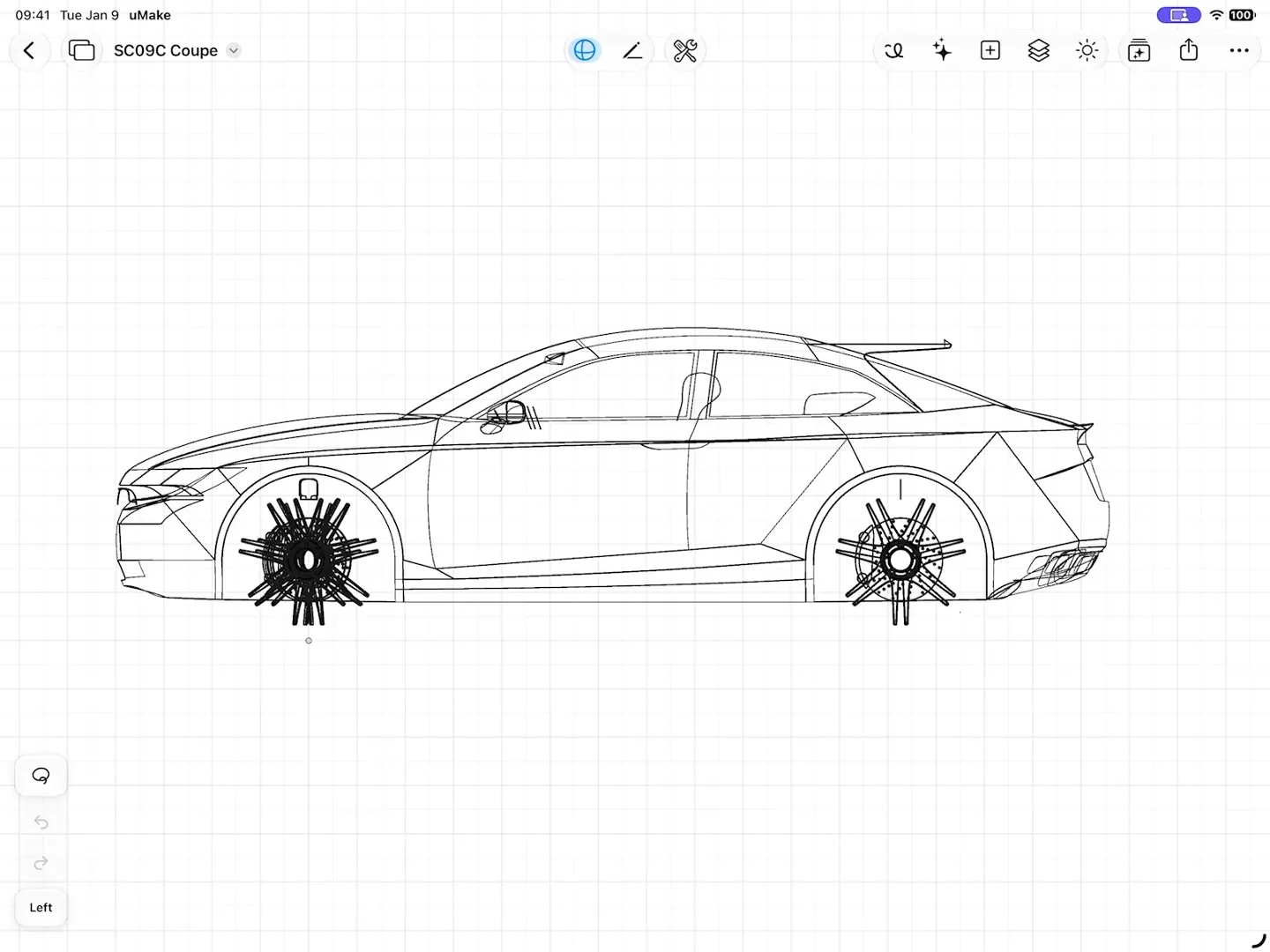
Apple Pencil is optional. Fingers work for every tool on iPad and iPhone, and on a Mac the keyboard and trackpad do. The Help topics in the app, also at uMake Learn, walk through each tool.
For architecture projects, set the sun by time of day, season and north to study shadows on the site, and use render styles such as Architectural Clay or Technical Ink for clean study images (uMake for architecture). Your designs save as you work, offline too, and sync through a free uMake account, so a model started on an iPad in the studio opens on your iPhone or Mac at home.
Spaces: your pin-up board
A Space is an infinite board for sketches, notes, photos and live 3D designs. It works well as a pin-up wall for a project:
- Drag in site photos and precedents, and add sticky notes and text.
- Place your 3D designs as live cards that orbit on the board; Edit opens one in the full editor, and changes come back (Help: 3D designs in a Space).
- Put a plan or a photo on a faded, locked layer with Use as Underlay and sketch over it (Help: Layers).
- Put each design option on its own layer, and hide layers to compare them in the crit.
- Export the board as a PNG to send or print, or as a UMKS file to open in uMake.
Presenting in a crit
In the 3D editor, Slides captures views of the model and plays them full screen, and Markup Mode lets you sketch notes over a slide while the view stays still, which is handy when a tutor redlines your scheme (Help: Slides & Presenting). View in AR on iPhone or iPad puts the model on the crit table at real size.
Exporting for your portfolio and the workshop
| For | Export | From |
|---|---|---|
| Portfolio images | Hi-Res Image (PNG), with render styles such as Architectural Clay or Technical Ink | 3D editor |
| Process boards | PNG | A Space |
| 3D printing | STL or OBJ | 3D editor |
| Other CAD and modeling tools | STEP, IGES or OBJ | 3D editor |
| AR on a phone | USDZ | 3D editor |
uMake doesn’t write DWG or DXF. For drawings in a CAD tool or files for a laser cutter, export STEP or IGES and prepare them on a desktop.
The Education plan: free with a class link
Students get the Education plan through a link from their teacher or school, never by signing up alone. Open the link, sign in with the account you use in uMake (Apple, Google or email) and claim it. No card is needed (uMake for Education).
| Education plan | |
|---|---|
| Drawing and editing in the 3D editor | Included |
| Every export format, with STL and OBJ for 3D printing | Included |
| The full content library | Included |
| Unlimited Spaces | Included |
| A monthly AI allowance | Not included (AI credit packs can be bought in the app) |
| Live AI Preview | Not included |
A class link gives 12 months from the day you claim it; a seat on a school’s license lasts as long as the license. AI tools still work with AI credit packs bought in the app. No link yet? Ask your teacher; schools can read about licenses on the Education page.
Is uMake free for students?
With a class link from a teacher or school, yes: the Education plan is free for 12 months and includes everything except the monthly AI allowance and Live AI Preview. See uMake for Education.
Can I get the Education plan without a teacher?
No. The plan comes through a link from your teacher or school, so ask them for it. Without one, uMake is free to download, and opening files and two Spaces are free; drawing, editing and export need a plan (pricing).
Can I use uMake for architecture school?
Yes: for sketching, massing and design models in meters or feet, daylight studies, crit boards in Spaces and portfolio images. Construction drawings are still done in desktop CAD, since uMake doesn’t write DWG or DXF.
Can I use the AI tools on the Education plan?
The plan has no monthly AI allowance and no Live AI Preview, but you can buy AI credit packs in the app to use the other AI tools.
Try it in uMake.
uMake is free to download for iPad, iPhone and Mac.