· 6 min read
Transform Your Interior Design Process: Digital Whiteboarding + 3D Models = Faster Client Approvals
Enhance your interior design process with digital whiteboarding and 3D modeling for faster client approvals and improved collaboration.
This article predates uMake 10.See what’s new
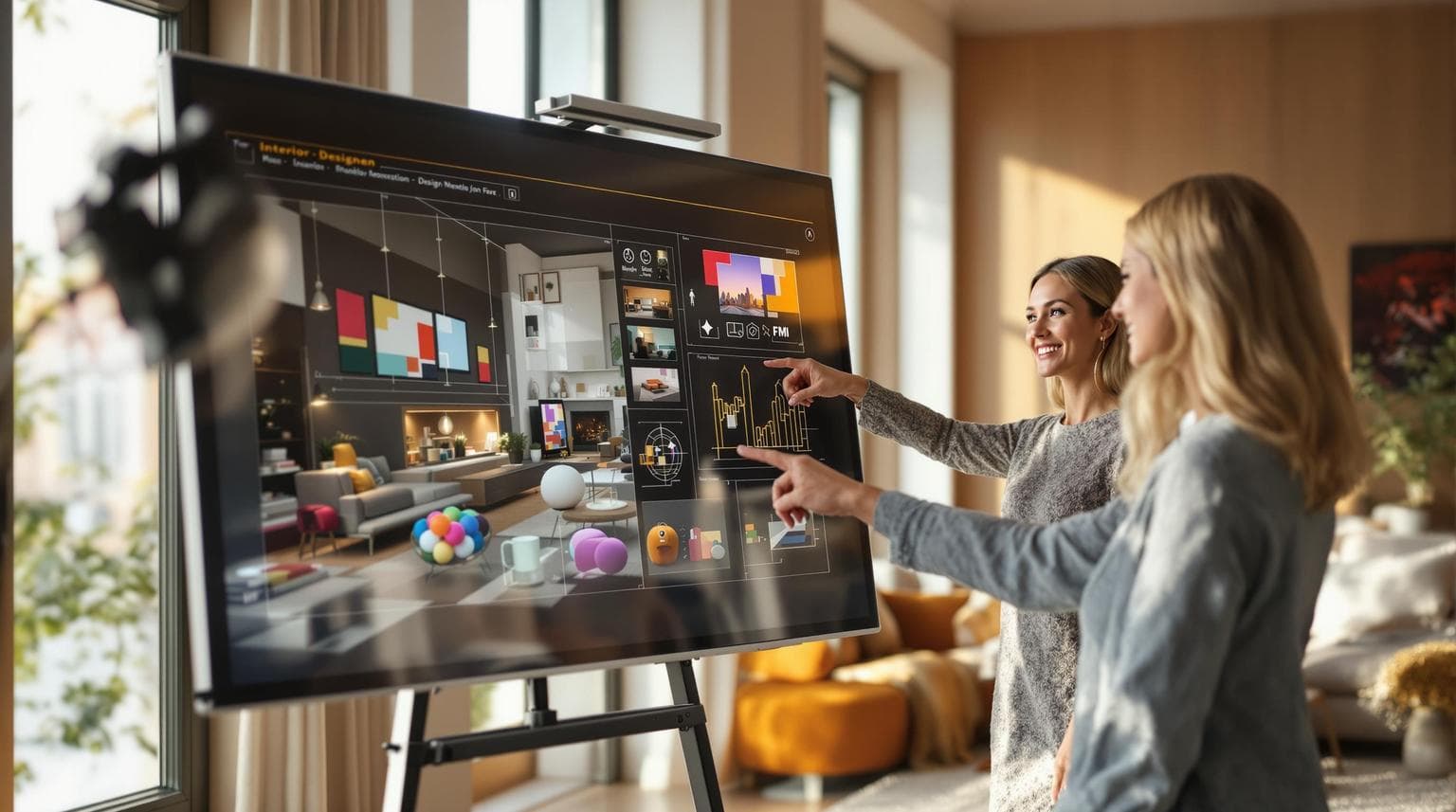
Want faster client approvals for your interior design projects? Combine digital whiteboarding with 3D modeling. These tools tackle common design bottlenecks like delayed feedback, expectation gaps, and poor communication. By enabling real-time collaboration, immersive presentations, and instant updates, they can cut project timelines by 30% and increase client satisfaction.
Key Benefits:
- Faster Feedback: Use interactive whiteboarding for live edits and discussions.
- Clearer Visuals: Present precise 3D models with AR views for better client understanding.
- Improved Workflow: Integrate tools like uMake for seamless project management.
Top Tools to Consider:
| Tool | Best For | Monthly Cost |
|---|---|---|
| uMake | Mobile designers | |
| SketchUp | Desktop teams | $119 |
| Morpholio Board | Mood board creation | $11.99 |
Why uMake? Its advanced CAD tools, AR visualizations, and mobile-first design make it ideal for professional designers looking to streamline their process.
Quick Tip: Start by creating accurate floor plans, add realistic textures, and use AR for impactful client presentations. This approach builds trust, reduces revisions, and speeds up approvals.
Present - Slides Mode
Selecting Digital Design Tools
Choosing the right tools is key to making the most of digital whiteboarding and 3D modeling in your design workflow. The right software can elevate collaboration and precision in your projects.
Key Features to Look For
When assessing design tools, prioritize features that enhance collaboration and efficiency:
| Feature Category | Important Elements | Impact on Workflow |
|---|---|---|
| Modeling Capabilities | NURBS technology, precision CAD tools | Accurate and detailed designs |
| Collaboration Tools | Real-time editing and sharing | Better teamwork |
| File Compatibility | Supports formats like STEP, IGES, OBJ | Easy integration |
| Mobile Support | Optimized for iPad/iPhone, Apple Pencil | Flexibility for on-site work |
| Presentation Features | AR visualization, rendering tools | Clearer client communication |
With these features in mind, let’s explore some of the top tools for interior designers.
Comparing Top Tools
There are several excellent options available for interior designers. Here's a breakdown of how the leading tools compare:
| Tool | Key Strengths | Best For | Monthly Cost |
|---|---|---|---|
| uMake | Professional CAD tools, AR presentation | Mobile designers | |
| SketchUp | Extensive 3D library, ease of use | Desktop teams | $119 |
| Morpholio Board | Mood board integration, Apple device support | Design inspiration | $11.99 |
Why Choose uMake?
uMake offers a robust set of tools tailored for professional interior designers.
What makes uMake stand out is its advanced 3D CAD modeling powered by precise NURBS technology. This makes it especially effective for producing detailed interior design projects. It also integrates effortlessly with major CAD programs like SolidWorks, Fusion 360, and AutoCAD, ensuring smooth collaboration with other tools in your workflow.
uMake’s AR visualization tools take client presentations to the next level, allowing designers to showcase projects in real-world settings. Its mobile-first approach, combined with professional-grade features, makes it a go-to choice for today’s interior designers.
3D Modeling Steps for Interior Design
3D Modeling Basics
Creating interior design models in uMake starts with understanding its core tools. With NURBS technology, you can achieve precise dimensions and detailed layouts. The first step is crafting accurate floor plans using uMake's CAD tools designed for precision.
Here’s how the modeling process typically unfolds:
1. Floor Plan Development
Accurate measurements and spatial layouts are key. With uMake's dimension tools, you can create a solid foundation for your design while keeping everything precise. Use layers to organize elements like walls, doors, or furniture, making updates and tweaks much easier.
2. Furniture and Fixture Placement
uMake’s extensive library of 3D objects makes it simple to add furniture and fixtures.
Adding Realism to Your Design
The final look of your model depends heavily on materials, lighting, and textures.
| Element | Key Focus | Effect on Model |
|---|---|---|
| Materials | Surface details, reflections | Adds realism to surfaces |
| Lighting | Placement, light simulation | Sets the mood and tone |
| Textures | Quality, tiling accuracy | Enhances surface details |
Using AR for Client Presentations
uMake’s AR features take presentations to the next level by:
- Projecting 3D models directly into real-world spaces
- Demonstrating material choices and furniture layouts at scale
- Allowing clients to view designs from multiple angles
For a smooth AR experience:
- Double-check that your model’s scale is accurate
- Optimize the file for mobile devices
- Use standard formats like STEP, IGES, or USDz to ensure compatibility
"The immersive experience of AR presentations can build client confidence and reduce the need for revisions, leading to faster approvals", says a uMake product specialist.
Digital Whiteboarding for Client Communication
Combining 3D Models with Whiteboards
Digital whiteboarding changes the way client presentations are done by creating an interactive space where 3D models meet real-time feedback. By using uMake's CAD tools alongside whiteboarding features, designers can present ideas in a way that's both clear and engaging. This setup helps streamline communication and speeds up decision-making, keeping projects moving forward.
- Import and Setup: Bring your uMake 3D model into the whiteboard platform. Make sure the file format, like STEP or USDz, is compatible to maintain scale and details. Prepare areas for annotations to collect feedback effectively.
- Interactive Elements: Use the whiteboard to display materials, color schemes, furniture layouts, or lighting setups so clients can review and comment in real-time.
Live Feedback Management
Managing feedback effectively means staying organized and keeping clients actively involved.
| Feedback Type | Tool Feature | How to Use It |
|---|---|---|
| Design Changes | Live Drawing Tools | Sketch updates on 3D views |
| Material Selections | Color Picker | Apply and adjust colors instantly |
| Layout Adjustments | Measurement Tools | Record and adjust dimensions |
Digital Whiteboarding Examples
Combining digital whiteboarding with 3D modeling creates a collaborative process that's both visual and easy to follow. With tools like uMake's Apple Pencil support, designers can adjust details on the spot while discussing changes with clients.
To make the most of your digital whiteboarding sessions:
- Use clear, simple annotations that clients can follow easily.
- Reserve a specific area for noting action items.
- Log all feedback directly within the session to avoid losing important details.
Speeding Up Client Approvals
Streamlining the Approval Process
Using tools like digital whiteboarding and 3D modeling can make client approvals much quicker. With uMake's advanced 3D modeling features and digital whiteboarding, you can present designs in an interactive way. Show off your work with 3D views, make real-time adjustments, and even use AR visualizations to give clients a clear picture of the final outcome. This approach helps clients make decisions faster and with more confidence.
After presenting the initial designs, keeping the process smooth depends on how well you handle changes.
Managing Design Changes
Handling design changes effectively means having a clear system for tracking and applying updates. uMake’s layer management system, combined with digital whiteboarding tools, helps you stay organized by keeping a detailed record of all updates and client feedback.
| Change Type | Tool Used | How It’s Done |
|---|---|---|
| Layout Adjustments | uMake CAD | Track updates by version |
| Material Changes | Texture Library | Preview updates instantly |
| Furniture Updates | 3D Model Library | Make quick, real-time adjustments |
By simplifying how changes are managed, designers can focus more on creating refined presentations that leave a lasting impression.
Gaining Client Trust
Clients feel more confident when designs are clear, precise, and professionally presented. uMake’s tools allow designers to produce accurate models and impressive visualizations, which reduces doubts and builds trust. Features like precision modeling and AR visualization highlight your expertise, while high-quality renderings make it easier for clients to understand the final design vision.
Conclusion: Improving Design Workflows
Main Points Review
Studies show that using these tools can cut design errors by 50% and increase client approval rates by 30%. By combining digital whiteboarding with 3D modeling, designers now have a smoother process for collaborating with clients and moving from concept to approval.
Here’s how digital tools are reshaping key areas of design workflows:
| Workflow Area | Old Approach | Impact of Digital Tools |
|---|---|---|
| Communication and Visualization | 2D sketches and long email threads | Real-time 3D models with collaborative input |
| Design Implementation | Manual revisions and meetings | Instant changes during client sessions |
| Project Approval | Multiple revision cycles | Faster decisions with interactive tools |
These shifts make the process faster, clearer, and more interactive for everyone involved.
Getting Started Guide
To take advantage of these tools, choose the right uMake plan for your needs.
Follow these steps to get started:
- Install uMake on your iPad or Mac to unlock 3D modeling capabilities.
- Learn the tools, including precision sketching and 3D modeling features.
- Explore the model library and textures to create detailed, accurate designs.
Combining these tools with a thoughtful approach to implementation can streamline the design process, making it easier for designers and clients to work together effectively.